Visualforce Developer’s Guide
 j
j
No Results
Search Tips:
- Please consider misspellings
- Try different search keywords
Newer Version Available
Get Flow Variable Values to a Visualforce Page
Flow variable values can be displayed in a Visualforce page. Once you’ve
embedded your flow in a Visualforce
page, you can use Visualforce markup
to get values for variables or sObject variables. To display values for a collection
variable or an sObject collection variable, you can use Visualforce markup to get the
individual values contained in the collection.
The following example uses an Apex class to get an
sObject variable value from a flow and then displays it in a Visualforce
page.
1public class FlowController {
2    public Flow.Interview.flowname myflow { get; set; }
3    public Case apexCaseVar;
4    public Case getApexCaseVar() {
5        return myflow.caseVar;
6    }
7}1<apex:page controller="FlowController" tabStyle="Case">
2 <flow:interview name="flowname" interview="{!myflow}"/>
3 <apex:outputText value="Default Case Priority: {!apexCaseVar.Priority}"/>
4</apex:page>The following example uses an Apex class to get the values that are stored in a string collection variable
(emailsCollVar) in the flow and then uses a Visualforce page to run the
flow interview. The Visualforce page iterates over the flow’s collection variable and displays the values for
each item in the
collection.
1public class FlowController {
2    public Flow.Interview.flowname myflow { get; set; }
3
4    public List<String> getVarValue() {
5        if (myflow == null) {
6            return null;
7        }
8        else {
9            return (List<String>)myflow.emailsCollVar;
10        }
11    }
12}1<apex:page controller="FlowController">
2 <flow:interview name="flowname" interview="{!myflow}" />
3 <apex:repeat value="{!varValue}" var="item">
4 <apex:outputText value="{!item}"/><br/>
5 </apex:repeat>
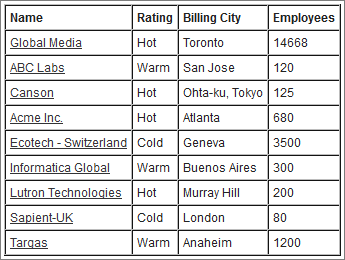
6</apex:page>The following example uses an Apex class to set the flow to {!myflow} and then uses a Visualforce page to run the flow interview. The Visualforce page uses a data table to iterate over the flow’s sObject collection variable and display the values for each item in the collection.
1public class MyCustomController {
2   public Flow.Interview.flowname myflow { get; set; }
3}1<apex:page controller="MyCustomController" tabStyle="Account">
2 <flow:interview name="flowname" interview="{!myflow}" reRender="nameSection" />
3 <!-- The data table iterates over the variable set in the "value" attribute and
4 sets that variable to the value for the "var" attribute, so that instead of
5 referencing {!myflow.collectionVariable} in each column, you can simply refer
6 to "account".-->
7 <apex:dataTable value="{!myflow.collectionVariable}" var="account"
8 rowClasses="odd,even" border="1" cellpadding="4">
9 <!-- Add a column for each value that you want to display.-->
10 <apex:column >
11 <apex:facet name="header">Name</apex:facet>
12 <apex:outputlink value="/{!account['Id']}">
13 {!account['Name']}
14 </apex:outputlink>
15 </apex:column>
16 <apex:column >
17 <apex:facet name="header">Rating</apex:facet>
18 <apex:outputText value="{!account['Rating']}"/>
19 </apex:column>
20 <apex:column >
21 <apex:facet name="header">Billing City</apex:facet>
22 <apex:outputText value="{!account['BillingCity']}"/>
23 </apex:column>
24 <apex:column >
25 <apex:facet name="header">Employees</apex:facet>
26 <apex:outputText value="{!account['NumberOfEmployees']}"/>
27 </apex:column>
28 </apex:dataTable>
29</apex:page>Depending
on the contents of the sObject collection variable in your flow, here’s what
that data table looks like.