


Salesforce1 Mobile App Developer Guide
 j
j
No Results
Search Tips:
- Please consider misspellings
- Try different search keywords
Add the Action to the Global Publisher Layout
When we created the canvas app, we opted to automatically create the action. In this
step, we’ll add the action to the global publisher layout so it shows up in the action bar
in the Salesforce1
app.
- In the Salesforce application, from Setup, click .
- Click Edit next to the Global Layout.
This is the default layout for the publisher.
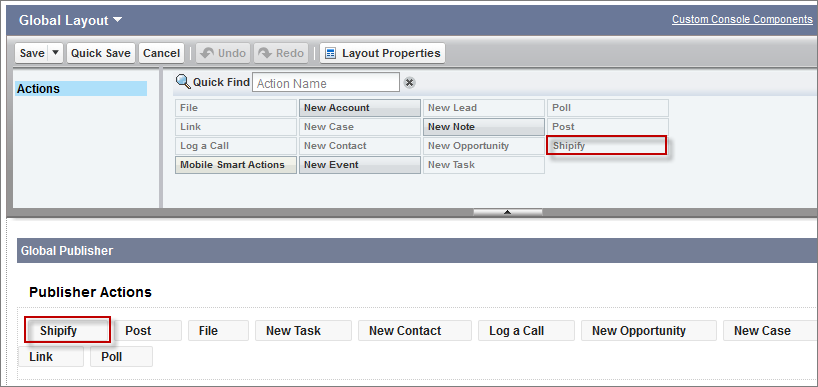
- Drag the Shipify element into the Publisher Actions section
so that it appears as the first element on the left.Our warehouse workers are going to use this custom action a lot, so we're putting it at the start of the list so it'll be one of the first actions they see in the action bar.
- Click Save.
Now that we’ve created the custom action and added it to the publisher layout, we’re ready to see it in action (no pun intended).