


Salesforce1 Mobile App Developer Guide
 j
j
No Results
Search Tips:
- Please consider misspellings
- Try different search keywords
Tell Me More: Where Visualforce Pages Can Appear in Salesforce1
When you create a Visualforce page, you can make it available from a number of places in the Salesforce1 user interface.
- Navigation menu—available when you tap
 from the Salesforce1 mobile app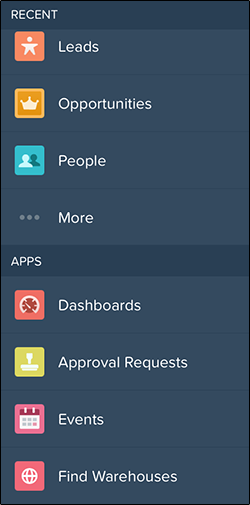
- Action bar and action menu—available from the bottom of any page in the Salesforce1 app that supports actions
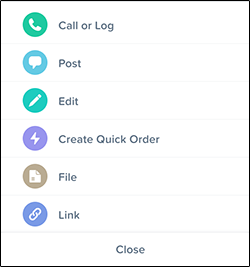
- Record related information page (as a mobile card)—available when you navigate to a record
You can also reference, and link to, another Visualforce page in your Visualforce markup, using the $Page global, or in Apex custom code, by creating a PageReference object and returning it from an action method. Page references like this are common in multi-page processes. Be sure to select Available for Salesforce mobile apps for all pages in a multi-page process.
If a referenced page doesn’t have Available for Salesforce mobile apps selected, it won’t prevent the referencing, or parent, page from appearing in Salesforce1. However, when a user tries to access the non-mobile enabled page, they’ll receive an “Unsupported Page” error message.