


Force.com Platform Fundamentals
 j
j
No Results
Search Tips:
- Please consider misspellings
- Try different search keywords
Introducing Search Layouts
By default, all lookup dialogs and related lists that result from new relationships, such as the ones we've defined in this chapter, only display the record name or number. For example, if you go ahead and create a job application, you might find the Candidate lookup dialog a little cryptic because the only listed field is Candidate Number. You probably expected to see the First Name, Last Name, and additional fields, as shown in the following screenshot.
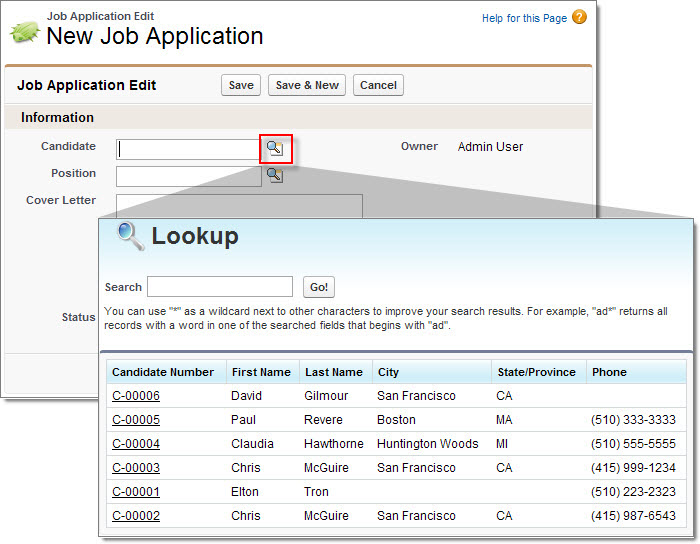
Likewise, the Job Applications related lists on the Position and Candidate detail pages only display a job application number. It is much more useful if these related lists also include the associated candidate's name or position.
To fix these issues, we can add fields to the search layouts for the objects that we've defined. Search layouts are ordered groups of fields that are displayed when a record is presented in a particular context, such as in search results, a lookup dialog, or a related list. By adding fields, we can give users more information and help them locate records more quickly.
The Search Layouts related list on the custom object detail page is the place to modify these sets of fields. From Setup, click and select the Candidate object. You'll see that the available search layouts include:
| Layout Name | Description |
|---|---|
| Search Results | The search results that originate from searching in the left sidebar search of the application or in advanced search. |
| Lookup Dialogs | The lookup dialog results that originate from clicking  next
to a lookup field on an edit page. next
to a lookup field on an edit page. |
| Lookup Phone Dialogs | The lookup dialog results that originate from clicking next
to a lookup field with a phone data type on an edit page. |
| Candidates Tab | The list of recent records that appears on the home page of a tab, and in related lists on other object detail pages. |
| Candidates List View | This layout isn’t for specifying fields. Instead, use it to specify the buttons that appear on the list view page for an object. |
| Search Filter Fields | The filters that can be applied to search results. |