


Force.com Platform Fundamentals
 j
j
No Results
Search Tips:
- Please consider misspellings
- Try different search keywords
Introducing Fields
We're ready to add more fields to our Position custom object, but first, let's talk briefly about what a field is and how it fits into the world of the Force.com platform.
As you might remember from the last chapter, a field is like a database column. The primary characteristic of a field is its data type—some fields hold text values, while others hold currency values, percentages, phone numbers, email addresses, or dates. Some fields look like checkboxes, while still others are drop-down lists or record lookups from which a user makes a selection.
The data type of a field controls the way the field is ultimately displayed in the user interface and how data entered into the field is stored in the platform. To get a better feel for how the fields will look, let's take a sneak peak at what the Position object is ultimately going to look like and the types of custom fields we're going to create for it:
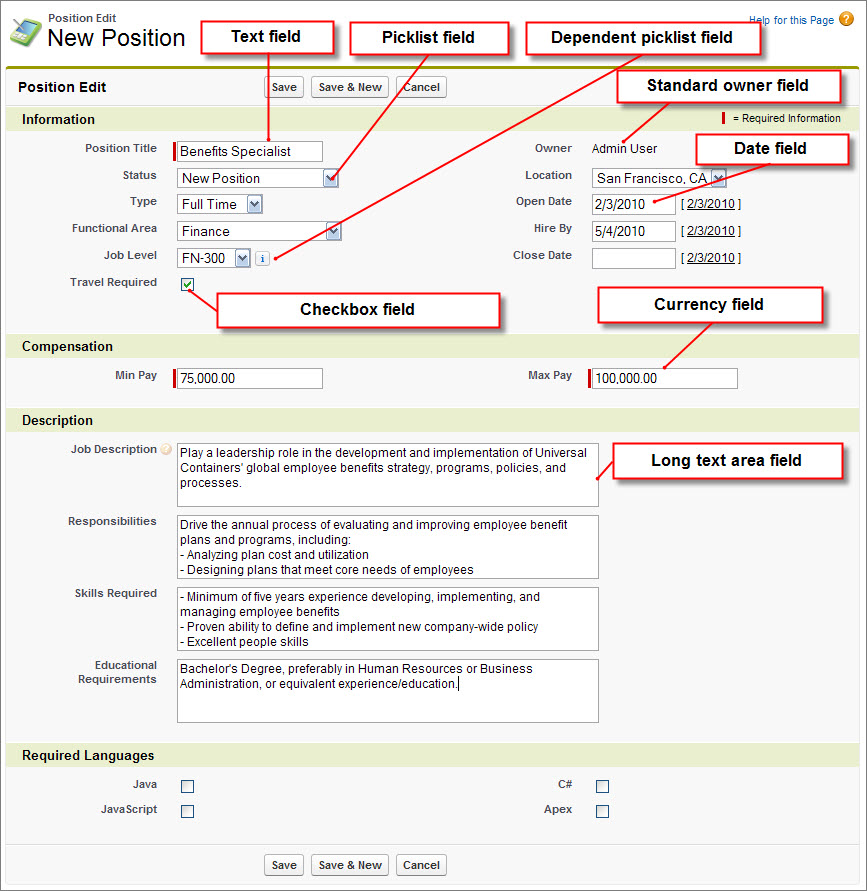
There are a lot of fields here that we need to define, some more complicated than others. To keep things simple, let's go through and create the simple text, currency, checkbox, and date fields. We can tackle the more complicated picklist and custom formula fields in Enhancing the Simple App with Advanced Fields, Data Validation, and Page Layouts.