


ISVforce Guide
 j
j
No Results
Search Tips:
- Please consider misspellings
- Try different search keywords
Newer Version Available
Configure the Channel Order App: Provide Service Order Credentials
Before using the Channel Order App, you must provide Service Order Credentials and
import your Contract Terms and Product Catalogs.
-
In the Force.com App menu, click Partner Order.
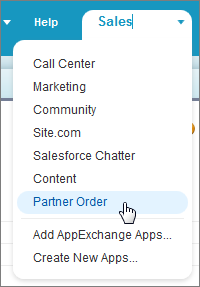
- View all available tabs by clicking “+” next to the last tab.
-
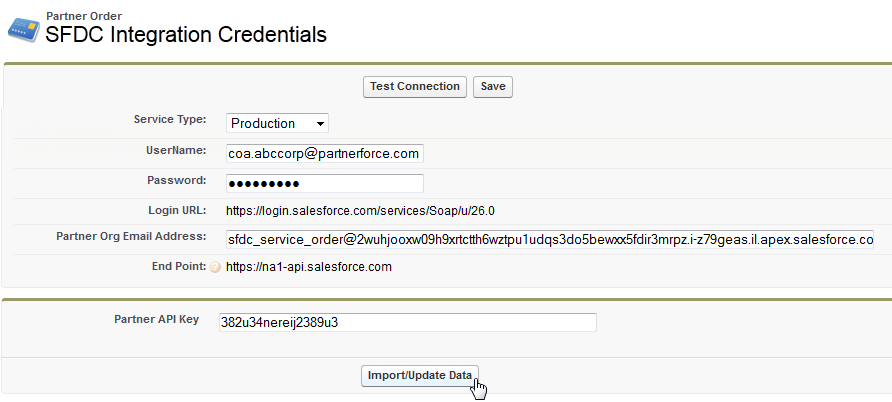
Click Service Order Credentials and enter the following information:
- Service Type: Production
- Username: Enter the user name provided to you by the Salesforce Partner Ops team. (This is different from the credentials used to log in to the org where the Channel Order App is installed.)
- Password: Enter the password provided to you by the Salesforce Partner Ops team.
- Login URL: This value is auto-populated for production orgs.
- Partner Org Email Address: Enter the email address you created in the previous step (Configure the Channel Order App: Define a New Email Service). If you need to find this email address again, from Setup click .
- End Point: This value is auto-populated for production orgs.
- Click Save then Test Connection to verify the connection to Salesforce.
- For Partner API Key, enter the API key provided to you by the Salesforce Partner Ops team.
-
Click Import/Update Data to import your Contract Terms and
associated Product Catalogs.
When the import is complete, the page will display a success message.
After you have completed the process above, your Contract Terms and Product Catalogs will
appear in the Channel Order App. For details, see Update Contract Terms and Product Catalogs and Add
New Contract Terms.