


Salesforce1 Mobile App Developer Guide
 j
j
No Results
Search Tips:
- Please consider misspellings
- Try different search keywords
Create a Global Action
We’ll create a global custom action for the DeliveryTrakr app so that we can then
add it to the global publisher layout.
In the previous canvas example, we selected Create
Actions Automatically when we created the canvas app in Salesforce. So the global action was created for us. In this scenario,
we didn’t select that field, so we’ll step through creating
the action manually.
- If the Canvas Previewer is still open, click Close. From Setup, click .
- Click New Action.
- In the Action Type drop-down list, select Custom Canvas.
- In the Canvas App drop-down list, select DeliveryTrakr.
- In the Label field, enter Track Deliveries.This is the label that appears to the user in the action bar and action menu in the Salesforce1 app or in the publisher in the full Salesforce site.
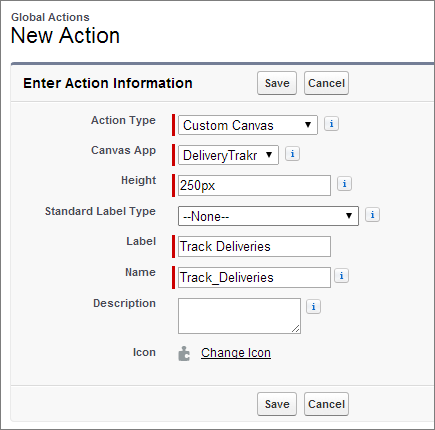
- Click Save.
Now that we’ve created the global custom action, we’ll add the action to the global publisher layout. This ensures that the action appears in the action bar where mobile users can access it.