


Salesforce1 Mobile App Developer Guide
 j
j
No Results
Search Tips:
- Please consider misspellings
- Try different search keywords
Test Out the Canvas Custom Action
Now you’ll play the part of an Acme Wireless warehouse worker processing orders, and we’ll test out the custom action in the Salesforce1 mobile
app.
-
On your mobile device, tap
 to access the action menu.
-
Tap the Shipify action.
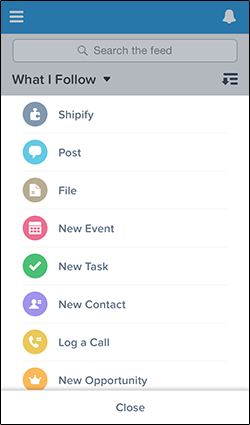 A list of all open invoices along with the customer account and warehouse information appears.
 -
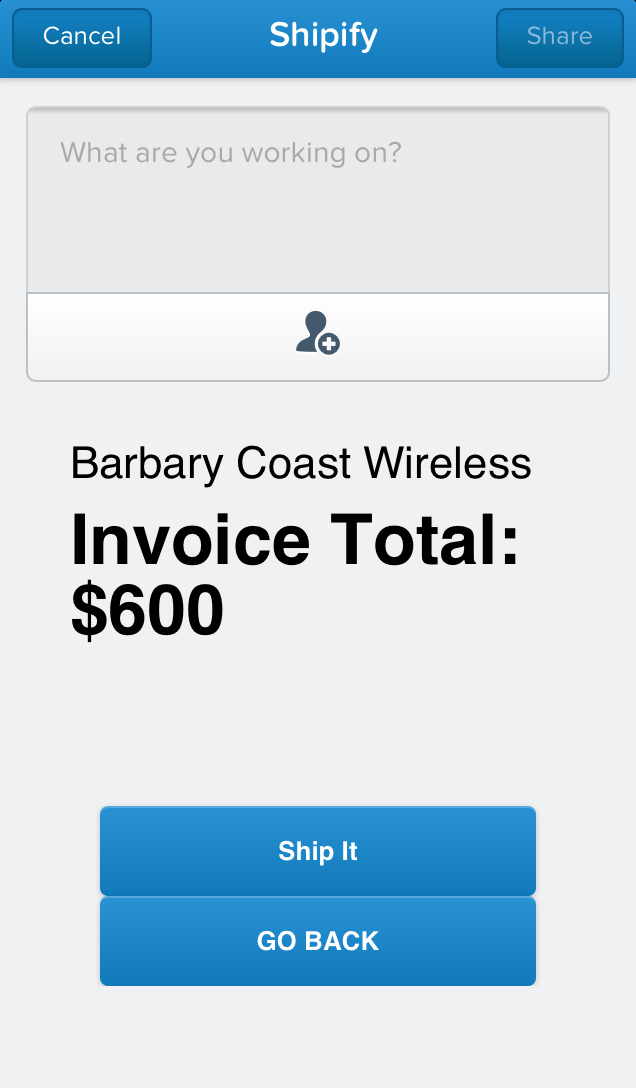
Tap one of the invoices, and a screen appears that shows the total amount of the
invoice and a Ship It button.
-
Tap Ship It.
This kicks off order processing in the Shipify Web application. In addition, Shipify sets the invoice status to Closed and creates a feed item for the account that shows that the invoice has shipped along with the related order number and a link to the invoice.
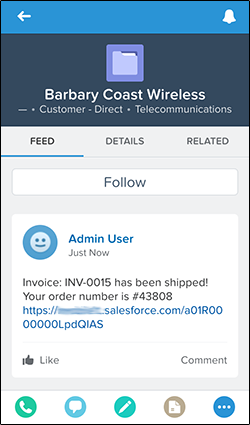
You did it! You’ve gone through the entire process of integrating a Web application in the Salesforce1 app using Force.com Canvas and canvas custom actions. Now warehouse workers can find customer orders, ship them out, and then update the order and the account feed.
For more information about development guidelines for canvas apps in the publisher and action bar, see Canvas Apps in the Chatter Publisher and Salesforce1 Action Bar.