Force.com Platform Fundamentals
 j
jTry It Out: Add Fields to the Candidate Lookup Dialog
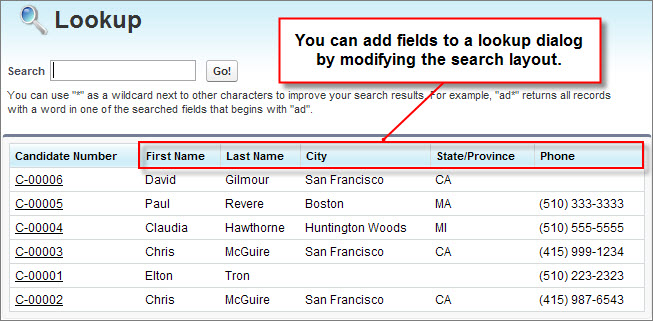
Let's add fields to our Candidate lookup dialog:
- From Setup, click .
- Click Candidate.
- In the Search Layouts related list, click Edit next to the Lookup Dialogs layout.
The Edit Search Layout page includes a list of available fields from the Candidate object. You can choose up to ten fields to include in the lookup dialog, and order them in any way you choose, except that the object's unique name or number field (such as Candidate Number) must be listed first.
- Move the following fields into the Selected Fields box under Candidate Number:
- First Name
- Last Name
- City
- State/Province
- Phone
- Click Save.
That's it! To try it out, return to the Job Applications tab, and click New. When you click the lookup icon next to the Candidate field, the dialog is now much more useful.