Salesforce Knowledge Developer Guide
 j
jNewer Version Available
Add a Search Field to the Visualforce Article Search page
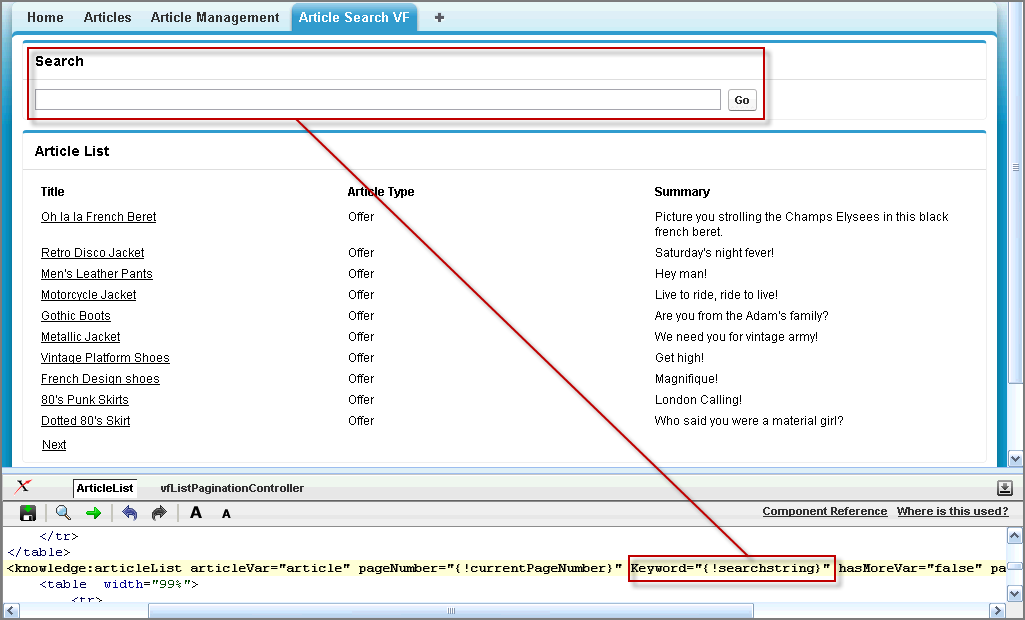
Let's create a keyword search field above the Article List. Entering text in this field refreshes the list and displays only articles containing this keyword.
Using a search field requires new methods to set and retrieve the search string. That's why we'll add a new controller before modifying the code from the Visualforce Article Search page.
- From Setup, click .
- Click New
- Copy and paste the content of the Visualforce Keyword Search Controller Code Sample.
- Click Save.
- In the footer of the Visualforce Article Search tab, click ArticleList to display the Visualforce development mode page editor.
- Delete all the existing markup in the Visualforce development mode page editor and replace it with the markup shown in the Visualforce Keyword Search Code Sample.
Visualforce Keyword Search Code Sample
Lines in bold are described below the code sample.
The code fragment below uses the Keyword attribute. The value for this attribute invokes the searchstring method of the vfKeywordSearchController controller.
Visualforce Keyword Search Controller Code Sample
Lines in bold are described below the code sample.
The code fragment below sets and retrieves the search keyword.
Look at What We've Done
The Visualforce Article Search page now shows a Search field above the article list.