ISVforce Guide
 j
jNewer Version Available
Install the Channel Order Application
This page explains how to get the Salesforce.com Channel
Order Application from the AppExchange and install it in your production
org.
Before you begin, confirm that you have admin access to the org you will use to submit and track production orders.
-
Go to the application listing for the Channel Order App
on the AppExchange: https://appexchange.salesforce.com/listingDetail?listingId=a0N300000055ailEAAYou must use the link; the listing is private and can’t be found by searching or browsing.
- If you are not already logged in, log in to the AppExchange using the credentials for the org where the app will be installed.
-
On the Salesforce.com Channel Order Application page, click Get It Now.
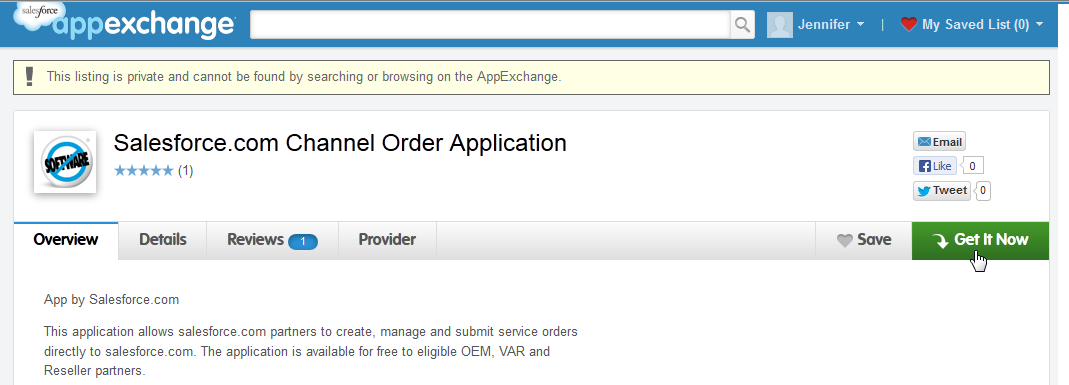
- Click Install in production.
-
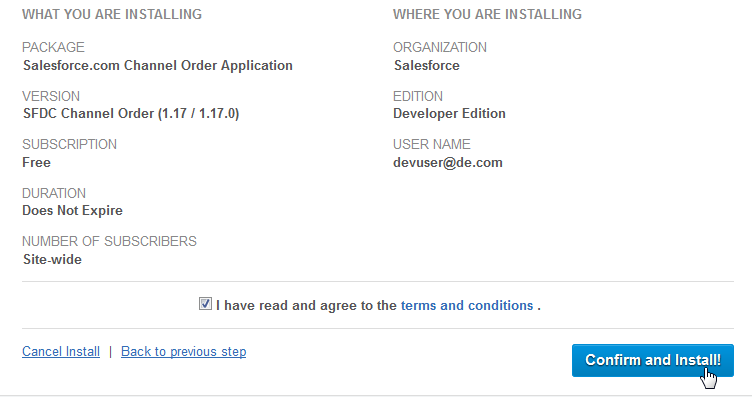
On the Installation Summary page, confirm that you are
installing the app in the correct org. Review the Terms & Conditions
and select “I have read and agree to the terms & conditions.”
Click Confirm and Install.
- Enter your Salesforce administrative credentials again and click Login.
-
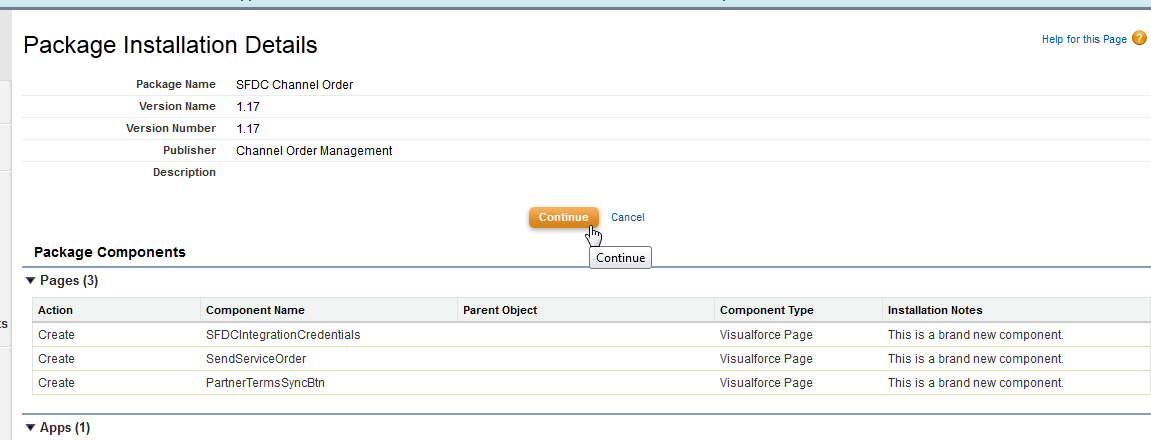
Before beginning installation, the installer displays the
Package Installation Details. Click Continue.
-
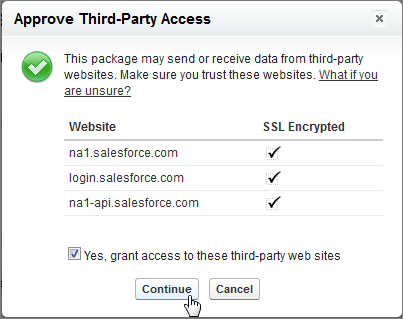
In the Approve Third-Party Access popup window, review
the list of websites and select “Yes, grant access to these
third-party websites.” Click Continue.
-
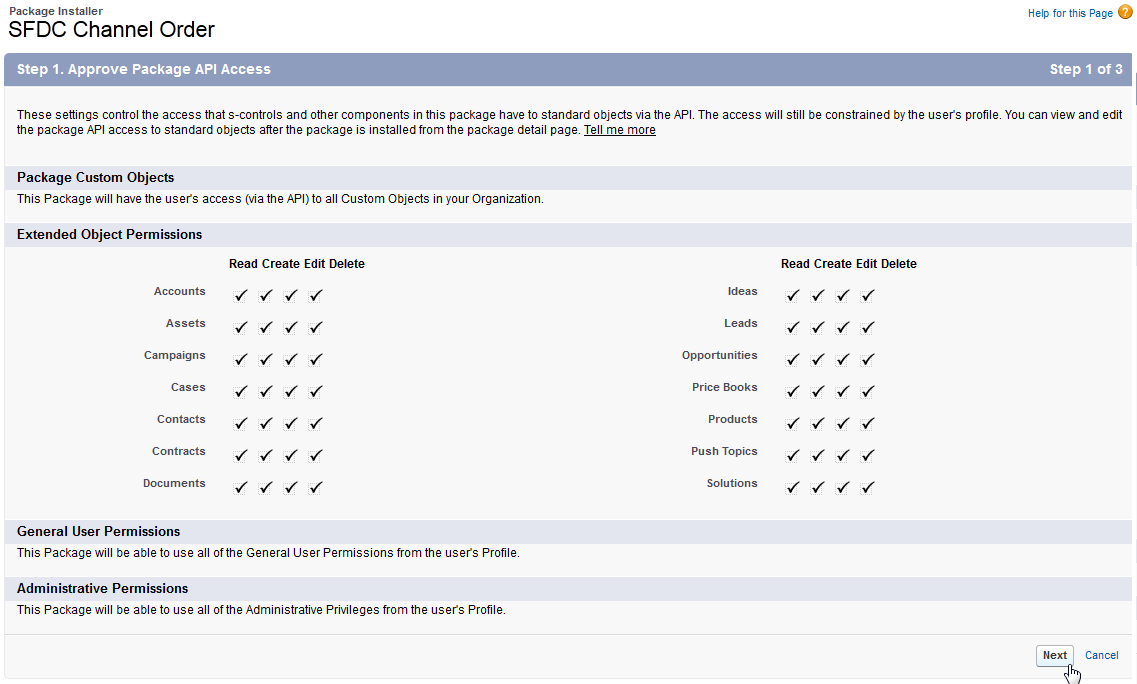
In Step 1: Approve Package API Access, the installer lists
the permissions required by the Channel Order App. Review the page
and approve the required access by clicking Next.
-
In Step 2: Choose Security Level, you can define which
user profiles can access the app. Select Grant access to admins only
and click Next.

- Click Install to start installation.
-
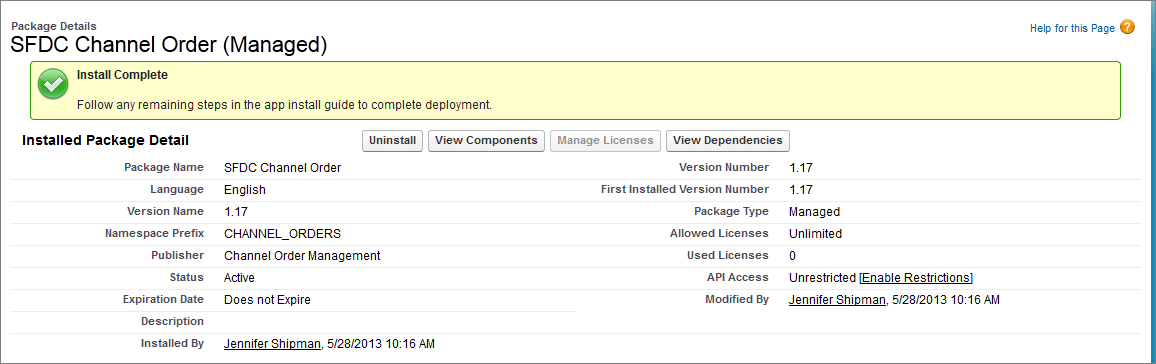
Installation may take 2-3 minutes. If you don’t
see the Install Complete page, go to and look for
SFDC Channel Order. If the package is not available, refresh the page
every minute until you see the package.