


Force.com Platform Fundamentals
 j
jLook At What We’ve Done
Before we move on to create the other type of action—object-specific—let’s make sure our global actions are working as expected.
To test our changes, log in to Salesforce as Mario Ruiz, and verify that Mario can create an IT position, a standard position, a candidate, and a job application from the Chatter publisher. Check it out in Salesforce1 as well.
- Log in to Salesforce as our recruiter, Mario Ruiz.
- In the publisher on the Home tab, click More. The bottom four options should be New IT Position, New Standard Position, New Application, and New Candidate.
- Click New IT Position. The fields that
appear should match what we configured in the action layout.Fields for a New IT Position in the Chatter Publisher
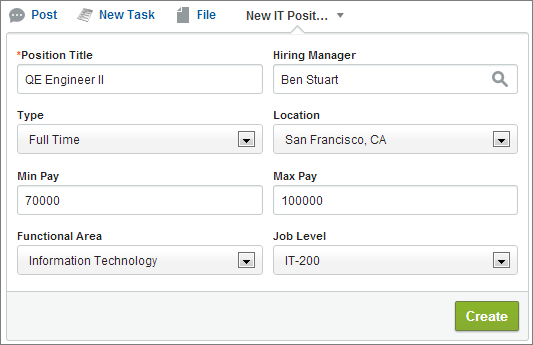
- Fill in the fields, and click Create.
As soon as we click Create, a feed item is created.
Feed Item for New QE Engineer II Position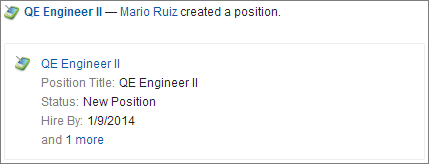
- Click the position name for the new IT position.
- Verify that our predefined field values have values assigned to them: Status should be New Position, Open Date should be today, and Hire By should be 90 days from today.
- Return to the Home tab, and repeat these verification steps for the New Standard Position, New Application, and New Candidate actions.