


Force.com Platform Fundamentals
 j
jNewer Version Available
Try It Out: Test the Candidate Map
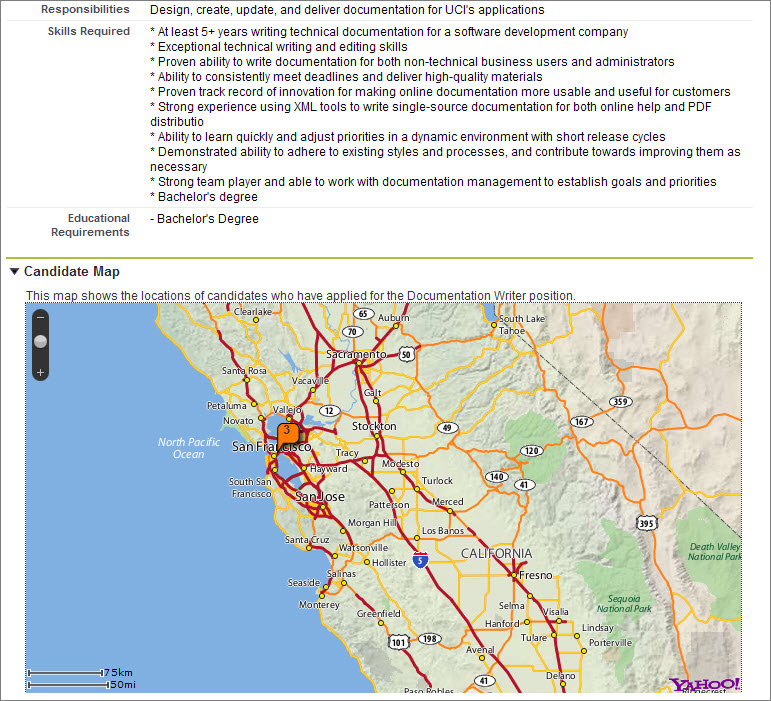
Launch Salesforce1 to see how the Candidate Map looks mobile. When you bring up a position record, swipe to the record detail view and scroll down to see the map. We can’t interact with the map on the record details page. To do so, tap the map to open it in another page. Everything looks in order!
Notice how the Candidate Map Visualforce page is embedded within our Recruiting app just like the other functionality we built using the platform's declarative, point-and-click tools. Also notice that the map automatically displays only candidates who applied to this position.
With very little programming and a few clicks, we've mashed up the Google Maps service with Force.com and made the result look as if it were made expressly for our Recruiting app. Couple SOAP API with the thousands of Web services that are available on the Internet today, and the possibilities are limited only by our imaginations!