


Salesforce1 Mobile App Developer Guide
 j
jTest the Predefined Value
- Open the Salesforce1 app on your mobile device.
-
Tap
 to access the
navigation menu.
to access the
navigation menu.
- In the Recent section, tap Accounts. You may have to tap More... to find it.
- Tap Barbary Coast Wireless.
-
In the action bar, tap
 to access the action menu.
-
Tap the Create a Case action.
Notice the Status field is now gone.
- Assign the case a High priority.
- Tap Product, and select any of the products on the list.
- Enter a subject and description.
- Tap Save.
- Tap Feed, and you should see a new feed item for the case you just created.
-
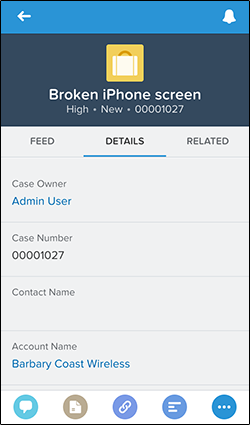
Tap the case number in the feed item, then tap Details.
In the record highlights area of the case record page, you’ll see the subject, priority (High), status (New), and the case number. The Status field was populated for us, thanks to our predefined value.
All right! We’re almost done with actions. There’s one more type, custom actions, that we’ll go over briefly for now.