


Tips and Hints for Sharing Data
 j
jTips and Hints for Sharing Data
Granting Access to Objects with Profiles and Permission Sets
The broadest way that you can control data is by specifying the objects that a user can view, edit, and create. You set users' object-level permissions by assigning them a profile and optionally, permission sets. The following standard profiles are available to all organizations:
| Profile | Description |
|---|---|
| Read Only | Can view, but not edit, most standard objects. |
| Standard User | Can view and edit standard platform objects, but can only view, (not manage) campaigns, and can only create (not review) solutions. |
| Standard Platform User | Can access the same functionality as the Standard User, but can also use custom apps developed in your organization or installed from the AppExchange. |
| Marketing User | Can access the same functionality as the Standard User, but can also manage campaigns, import leads, create letterheads, create HTML email templates, manage public documents, and update campaign history. |
| Contract Manager | Can access the same functionality as the Standard User, but can also create, edit, and activate contracts and orders. |
| Solution Manager | Can access the same functionality as the Standard User, but can also review and publish solutions. |
| System Administrator | Can create, view, edit, and delete any object, and can also use or customize any functionality that does not require an additional license. For example, administrators cannot manage campaigns unless they also have a Marketing User license. |
In Enterprise, Unlimited, Performance, and Developer Edition organizations, you can use standard profiles, create custom profiles, and create permission sets to fit your business needs.
- To create a custom profile, from Setup, enter Profiles in the Quick Find box, then select Profiles, then click New.
- To create a permission set, from Setup, enter Permission Sets in the Quick Find box, then select Permission Sets, then click New.
Specifying Default Access to Records with Organization-Wide Defaults
Once you specify object-level permissions in a user’s profile or permission sets, you can specify the individual records to which a user has access.
Default access to records is specified with organization-wide defaults for objects. To set your organization’s defaults, from Setup, enter Sharing Settings in the Quick Find box, then select Sharing Settings and edit the organization-wide defaults section.
- How do I give all users access to view, edit, delete or transfer
any campaign?
- Set Default Access for campaigns to Public Full Access.
- How do I give all users full access to view, edit, or transfer
any case?
- Set Default Access for cases to Public Read/Write/Transfer.
- How do I give all users full access to view, edit, or transfer
any lead?
- Set Default Access for leads to Public Read/Write/Transfer.
- How do I give all users full access to view and edit any record?
- Select Public Read/Write for all sharing options.
- How do I give all users read access but restrict editing to records
they own?
- Select Public Read Only for all sharing options.
- How do I give users read and edit access to all accounts but prevent
them from seeing and editing each other’s deals?
- Choose Public Read/Write for accounts and Private for opportunities.
- If your organization-wide default is Public Read Only or Private, create sharing rules to extend access to additional users.
- Set the Opportunity Access on each role to determine whether users can view and edit opportunities they do not own but are related to accounts they do own.
Sharing Records with a Role Hierarchy
Once you have defined your organization-wide defaults, use a role hierarchy to ensure that managers can view and edit the same records their employees can. Users at any given role level are always able to view, edit, and report on all data owned by or shared with users below them in the hierarchy, unless an object's settings specify ignoring the hierarchies.
To define your organization’s role hierarchy, from Setup, enter Roles in the Quick Find box, then select Roles. Role hierarchies don't need to match your organization chart exactly. Instead, each role in the hierarchy should represent a level of data access that a user or group of users needs.
Sharing Records with Sharing Rules
Sharing rules extend the access specified by organization-wide defaults and the role hierarchy. Sharing rules are typically based on record ownership, or in some cases, other criteria. To define sharing rules, from Setup, enter Sharing Settings in the Quick Find box, then select Sharing Settings, then in a sharing rules related list, click New. Following are a few common scenarios and their solutions using sharing rules:
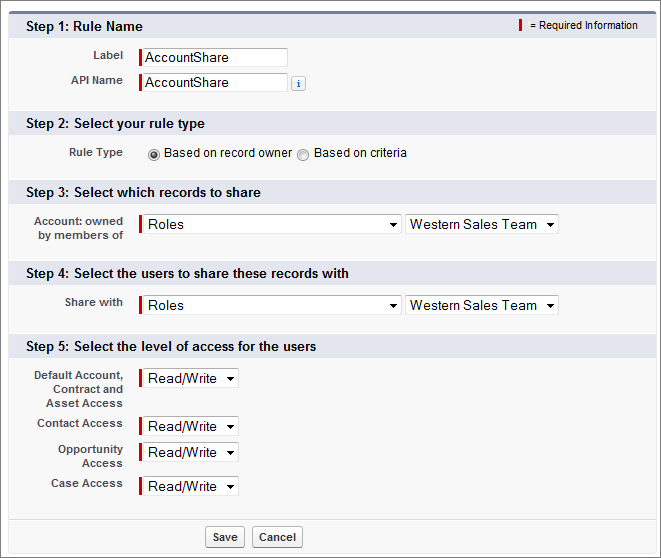
- Your company has two sales divisions: Eastern and Western. The
Western sales reps want to share all account and opportunity records
with their colleagues within their division. The Eastern sales division
prefers to keep data private. For this example, you can choose a Private organization-wide default for accounts and contacts.
Then create a sharing rule that gives the Western Sales Team read
and write access to all accounts, contacts, opportunities, and cases
owned by members of that role. This rule may look like:
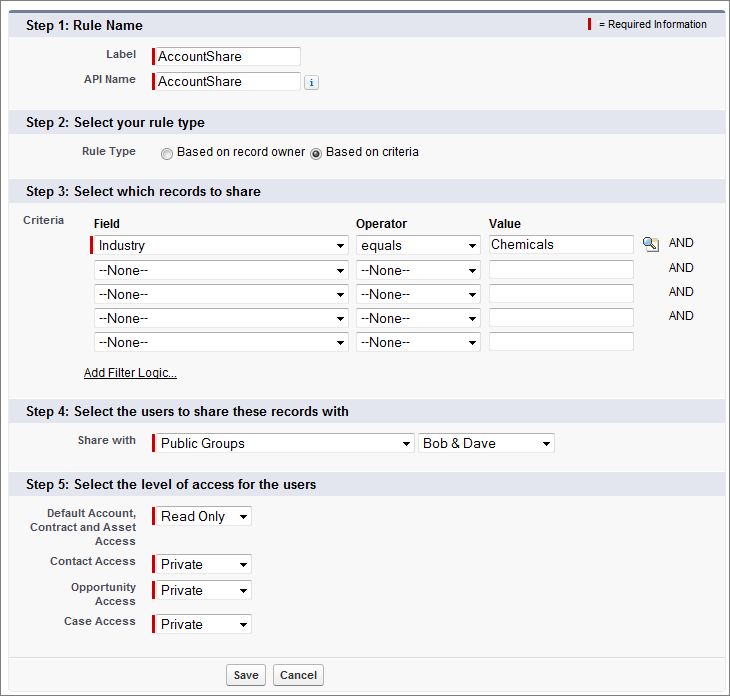
- Your company sells to many different industries. Two of your engineers
need to know the details of accounts in one industry: chemicals. With
a Private sharing organization-wide default
setting for accounts, create a public group that includes two users:
Bob and Dave, the engineers for chemicals. Create an account sharing
rule based on criteria that allows this group read-only access to
account records in which the Industry field equals Chemicals. This
rule may look like:
Types of Sharing Rules
| Type | Based on | Set Default Sharing Access for |
|---|---|---|
| Account sharing rules | Account owner or other criteria, including account record types or field values | Accounts and their associated contracts, opportunities, cases, and optionally, contacts and orders |
| Account territory sharing rules | Territory assignment | Accounts and their associated cases, contacts, contracts, and opportunities |
| Asset sharing rules | Asset owner or other criteria, including asset record types or field values | Individual asset records |
| Campaign sharing rules | Campaign owner or other criteria, including campaign record types or field values | Individual campaign records |
| Case sharing rules | Case owner or other criteria, including case record types or field values | Individual cases and associated accounts |
| Contact sharing rules | Contact owner or other criteria, including contact record types or field values | Individual contacts and associated accounts |
| Custom object sharing rules | Custom object owner or other criteria, including custom object record types or field values | Individual custom object records |
| Lead sharing rules | Lead owner or other criteria, including lead record types or field values | Individual leads |
| Opportunity sharing rules | Opportunity owner or other criteria, including opportunity record types or field values | Individual opportunities and their associated accounts |
| Order sharing rules | Order owner or other criteria, including order record types or field values | Individual orders |
| User sharing rules | Group membership or other criteria, including username and whether the user is active | Individual user records |
| User provisioning request sharing rules | User provisioning request owner, only; criteria-based sharing rules aren’t available | Individual user provisioning request records |
The Big Picture for Sharing Records
Many security options work together to determine whether users can view or edit a record. Use organization-wide sharing settings to lock down your data to the most restrictive level, and use record-level security and sharing tools—such as roles, sharing rules, and manual sharing—to give access to other users.
See A Guide to Sharing Architecture for data accessibility components, sample sharing model use cases and customer sharing solutions, and troubleshooting guidelines.