


Force.com Platform Fundamentals
 j
jLook at What We've Done
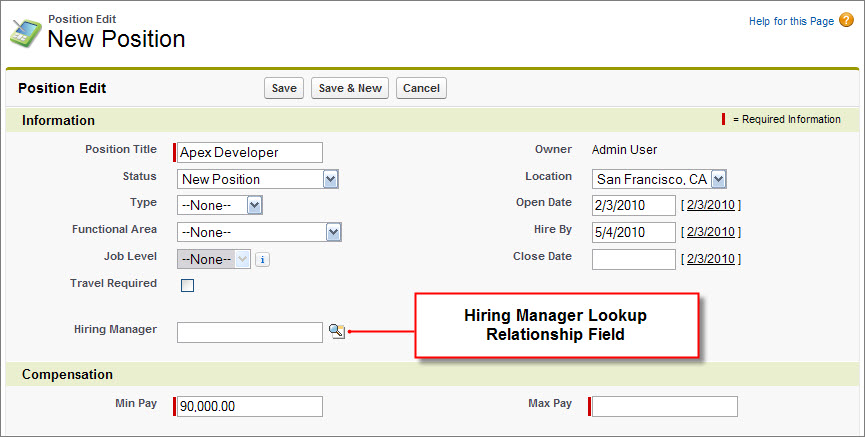
Now return to the Positions tab, and click New. The Position edit page includes a new Hiring Manager lookup field! If you click the lookup icon next to this field ( ),
you can search through all of the users of the Recruiting app and
select one as the hiring manager. That user's name now appears on
the position record.
),
you can search through all of the users of the Recruiting app and
select one as the hiring manager. That user's name now appears on
the position record.
As you can see, it was easy to set up this simple relationship between positions and users. And as a general rule, you'll find that relationships are pretty easy to set up.
What gets a little tricky is when we start wanting to create relationships that don't represent a simple many-to-one relationship. We'll see an example of one of those in a little bit. Right now, let's build a custom object for candidates so we'll be able to create some more relationships in our Recruiting app.
Beyond the Basics
Did you know you can use Schema Builder to view the details of your schema and to quickly add and edit objects and relationship fields?
Say you’re having a hard time visualizing how the Hiring Manager lookup is related to the Position and User objects. Schema Builder provides a dynamic environment that lets you see field details, such as whether the field is required, and shows how standard and custom objects are connected through lookup and master-detail relationships. You can zoom and pan in Schema Builder, edit an object’s properties, and double-click any field to edit it.
To find out more, see “How Do I Access Schema Builder?” in the Salesforce Help.