


Salesforce1 Mobile App Developer Guide
 j
jCreate a New Tab
Now we’ll create a new tab and add the Visualforce page you just created.
- From Setup, enter Tabs in the Quick Find box, then select Tabs.
- In the Visualforce Tabs section, click New.
- In the Visualforce Page drop-down list, select FindNearbyWarehousesPage, or the page you created in the previous step.
-
In the Tab Label field, enter Find Warehouses.This label appears on the navigation menu in Salesforce1.
-
Click into the Tab Style field, and
select the Globe style.The icon for this style appears as the icon for the page in the Salesforce1 navigation menu.
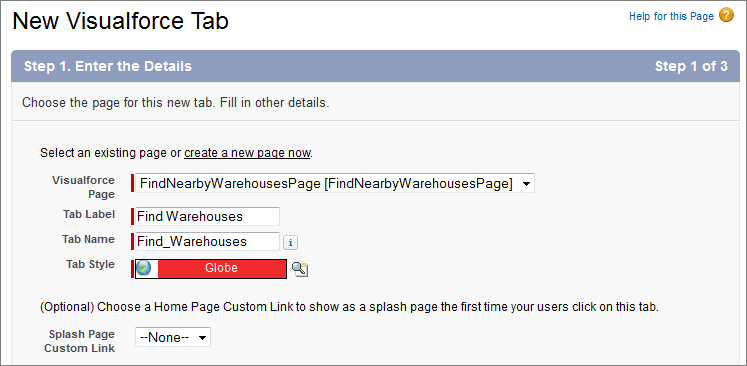
- Click Next.
- Click Next to accept the visibility defaults.
- Deselect the Include Tab checkbox so that the tab isn’t included in any of the apps in the organization. We only want this tab to appear when users are viewing it on their mobile device.
- Click Save.
Now that you’ve created the Visualforce page and the tab, you’re ready to add the new tab to the navigation menu.