


Building Salesforce Custom Links
 j
jBuilding Salesforce Custom Links
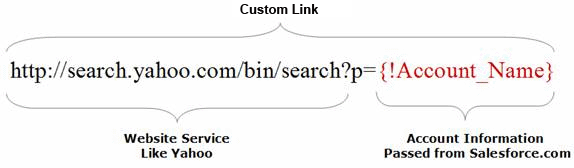
What are Custom Links?
Best Practices
- Pass Session IDs with SSL
- Session IDs should never be passed to an “http” URL. Instead, pass session IDs with a secure sockets layer (SSL) “https” URL. Any data that is passed to other applications hosted on the Internet should always use SSL since it may contain sensitive customer information.
- Use Relative Links to Salesforce Pages
- When creating a custom link to a page within Salesforce, do not include the domain portion of the URL. For example, https://na1.salesforce.com/00Oz0000000EVpU&pv0={!Account_ID} should not include https://na1.salesforce.com. Instead, use /00Oz0000000EVpU&pv0={!Account_ID}.
- Use Merge Fields to Pass Salesforce Data
- You can add merge fields to a custom link to pass data from your Salesforce records, user information, or company information to another website or application.
- Use ampersands to pass multiple merge fields in a custom link. For example: http://maps.yahoo.com/py/maps.py?cn={!Account_BillingCountry}&csz={!Account_ShippingCity}+{!Account_ShippingState}+{!Account_ShippingPostalCode}+&addr={!Account_ShippingAddress}.
- Substitute Symbols for Certain Characters
- Due to URL encoding standards set forth by the World Wide Web Consortium (W3C), some characters cannot be passed through a URL. For example, the space and newline character. Instead, use %2D for a space and %0D for a newline. For more information on URL encoding and what characters cannot be passed through a URL, see W3C.
Linking to Documents
Use custom links to reference documents from any Salesforce record detail page:
- Create a folder on the Documents tab to which all users have access.
- Upload the document to that folder.
- From the Documents tab, choose the folder and click Go.
- Click View next to the document.
- Copy the document’s URL from the browser. For example, https://na1.salesforce.com/servlet/servlet.FileDownload?file=015300000000xvU.
- Use the URL to create the custom link. Remember to omit the domain portion, https://na1.salesforce.com.
Linking to Reports
Use custom links to run reports with filtered results from any Salesforce record detail page. For example, if you frequently run a mailing list report for the contacts related to an account, create a custom link for accounts that links directly to a report that is automatically filtered to the account you are viewing. To do this, your custom link needs to pass the account’s unique record ID to the report.
- First, you will need an ID for the type of record by which you want to filter your report (in this example, an account). View any record of the right type and copy the 15 character ID from the last part of the URL. For example, https://na1.salesforce.com/001200030012j3J.
- From the Reports tab, create the report you want by either customizing a standard report or creating a new custom report.
- On the Select Criteria page of the wizard, filter the report by the record ID you previously copied. For example, “Account ID equals 001200030012j3J”. See the sidebar on the left for tips on setting other report options.
- Run the report to verify that it contains the data you expect.
- Click Customize and navigate to the Select Criteria page of the wizard.
- Delete the record ID from the report filter, but leave the field and operator values intact. Note the order of your filter, for example, first, second, third, etc.
- Click Save or Save As to save the report to a public folder accessible by the appropriate users. Save does not create a new custom report, whereas Save As does.
- Run the report and copy the report’s URL from the browser.
- Begin creating your custom link. In the Link URL field, paste the report URL you copied. Remember to omit the domain portion, https://na1.salesforce.com.
- At the end of the URL add the following text: ?pv0=. Use pv0 if your filter is in the first position, pv1 if second, pv2 if third, and so on. Then use the merge field drop-down lists to add the appropriate ID merge field (in this example, {!Account_ID}). For example, /00O30000000dS8u?pv0={!Account_ID}.
- Add the custom link to the appropriate page layouts.
- Verify that the new custom link works correctly.
Setting Report Options
- When creating a report for use in a custom link, set date ranges and report options generically so that report results include a variety of data that can be useful for multiple users.
- For example, if you set a date range using the “Created Date” of a record, set the Start Date far enough in the past to not exclude any relevant records and leave the End Date blank.
- For example, if you scope the report to just “My” records, the report may not include all records that a user can see. Try setting the report options to “All visible” records.
Best Practices for Advanced Users
- Pre-Populate Fields
- Create custom links that pre-populate fields with default values. For example, by default give new contracts 12–month terms that start today.
- Get the names of the fields you want to pre-populate by opening
the detail page where the custom link will display. Click New from the appropriate related list.
For example, to add a custom link that creates contracts on the account detail page, click New from the Contracts related list of an account detail page. If the Contracts related list is not visible on the account detail page, add it to the related list section of the account page layout; see “Customizing Page Layouts” in the online help.
- Copy the URL from the address bar of your Web browser. For example:
https://na1.salesforce.com/003/e?retURL=%2F001D0000003qFmB&accid=001D0000003qFmB
- In your browser, view the source of the contract edit page. In Internet Explorer, select ; in Mozilla Firefox, select .
- Search the page source for the label of the fields you want to pre-populate. For example, to pre-populate the Contract Term field on contracts, search for “Contract Term.”
- For each field, locate the relevant <input> tag—usually within the immediate <td> (table cell) tag. Copy the text after name=. For example, from <input name="ctrc40"/>, copy ctrc40. See the sidebar for more information about these field names.
- From the object management settings for accounts, find Buttons, Links, and Actions to begin
creating your custom link.
- If you’re using Salesforce Classic, from Setup, enter Accounts in the Quick Find box, then select Buttons, Links, and Actions.
- If you’re using Lightning Experience, from Setup, enter Object Manager in the Quick Find box, then select Object Manager. Next, click Account, and then scroll down to the Buttons, Links, and Actions section.
- Delete the 15-character ID from the URL after “acc_id”. Use the merge field drop-down lists to add the appropriate ID merge field. For example, {!Account_ID}.
- Insert the link parameters using the following syntax: “&{field input name}=desired field value.” For example, the following link sets the contract term
to 12 months with a start date of today:
/800/e?retURL=%2F001D0000003pmTi&accid={!Account.Id}&ctrc40=12&ctrc5={!Today}
- Add the custom link to the appropriate page layouts.
- Verify that the new custom link works correctly. Note that custom links can alternatively be configured as custom buttons; see “Defining Custom Buttons and Links” in the online help.
- Custom Links Do Not Support Data Type Conversion
- When creating custom links to pass data from one Salesforce field to another, the data must match the data type of the fields in which you are placing it. For example, if you have numeric data, you must pass it to a numeric field.
- Single Sign-On
- Use custom links to pass a session ID to support Single Sign-On (SSO), so users can avoid multiple logins to web applications that your organization hosts to manage Force.com data. To do this, construct your custom link to pass the {!User_Session_ID} merge field. This allows users to access all authorized resources during a single authentication. External systems can access Salesforce resources using a web service, which allows organizations to communicate data without intimate knowledge of each other's IT systems behind a firewall.
- Send the Server Date in the URL
- Some integration projects may need custom links to include a server date to know the Salesforce initiation date. The Salesforce server date can be passed to external systems using custom links. For example, http://someurl.com/somepath?current_date={!Today}. Dates use the Pacific time zone.
- Avoid Double Sets of Tabs in a Browser
- Enterprise, Unlimited, and Performance Edition users can build a custom link to perform an action that
keeps users in the same browser window and does not display a double
set of tabs. Create a Visualforce page
that contains the following code, replacing <REGULAR_WIL> with
your regular or existing custom link.
1<script language="JavaScript">
2function redirect() {
3parent.frames.location.replace("<REGULAR_WIL>")
4}
5redirect();
6</script>