


Force.com Platform Fundamentals
 j
jNewer Version Available
Try It Out: Create a Visualforce Page
Now that we're in development mode, let's create a Visualforce page called CandidateMap by simply modifying the URL in our browser.
- In the address bar of your browser, replace everything to the right of salesforce.com/ with apex/CandidateMap.
The resulting URL should look something like this: https://yourDomain.my.salesforce.com/apex/CandidateMap.
- Press Enter.
The following Visualforce error page appears indicating that the page doesn't exist yet. Again, that's okay—this gives us a chance to exercise one of the other handy features of development mode, the quick fix. A quick fix is a way of creating something on the fly, right when we need it. In this case, even though the CandidateMap page doesn't exist yet, development mode gives us a quick fix link to create it on the fly. Clicking the link is the equivalent of going to Setup, navigating to the Visualforce page section, clicking New, entering the name of the page, and clicking Save.
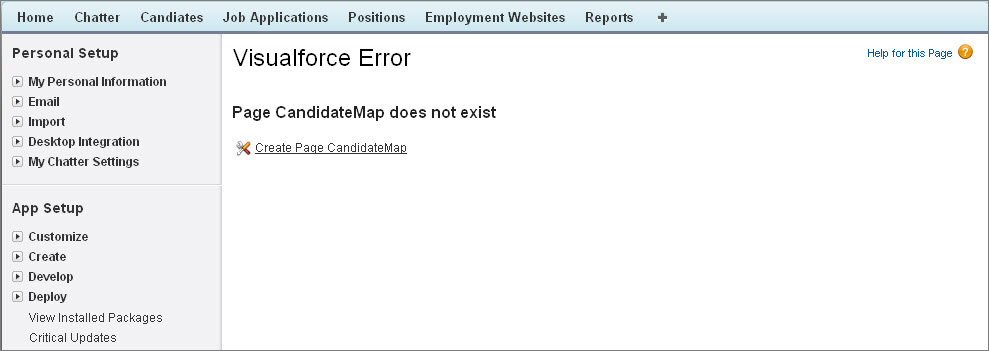
- Click the Create Page CandidateMap link.
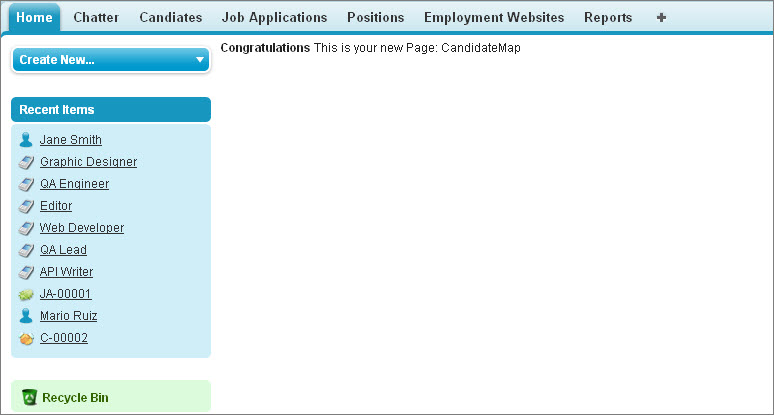
Congratulations! You've created your first Visualforce page! Now it's time to add some Visualforce markup so it displays our candidate map.