Force.com Platform Fundamentals
 j
jThe Basics of an App's User Interface
You and your users may access Salesforce through two interfaces: the full Salesforce site, as accessed from your desktop computer, and the mobile app. Throughout this guide, we’ll walk through tasks and see the impact of those customizations in both environments. If you haven't used Salesforce before, you'll find it worthwhile to log in and spend a bit of time clicking around both the full site and the mobile app. Most Salesforce editions (including Developer Edition) have a basic Salesforce Sales app, so we'll start by looking at that. The interface for these tasks has a lot in common with the interface of the app we’re planning to build.
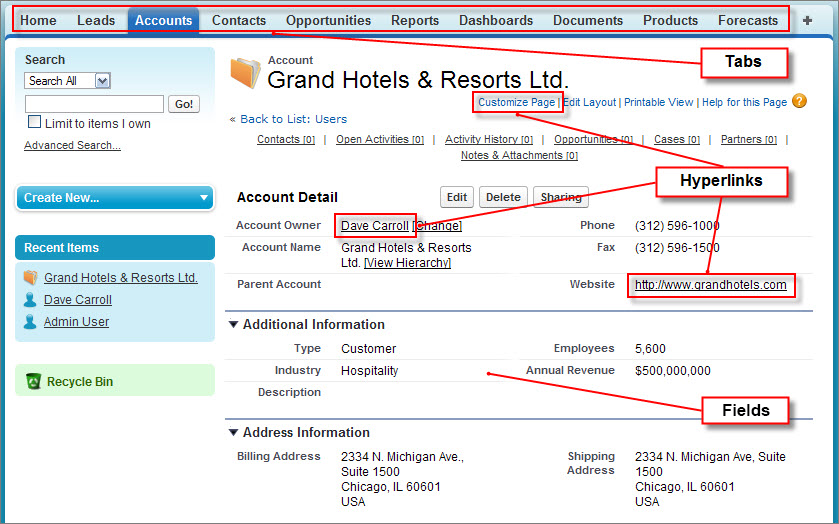
As you can see when you start clicking around, there are a few key elements that form the foundation of the Sales app and of most applications created with the platform.
- Tabs
- Across the top of the app is a set of tabs that segment the app into different parts. Each tab corresponds to a type of object, such as an account or contact, and within a tab you can perform actions on particular records of that tab's type. For example, when you click on the Accounts tab, you can create a new record for the “Acme” account. You can also edit existing accounts, or use a list view to filter lists of accounts by certain criteria. Most app development work revolves around creating tabs and defining the data and behaviors that support them.
- Fields
- Displayed within each record is a selection of fields, which is how the Force.com platform houses and organizes information. For example, a contact record includes fields such as Last Name, Home Phone, Mailing City, Title, Birthdate, Reports To, and Account. When developing a new app, you can customize which fields appear for a given type of record—such as for contact records—as well as how they are organized. In a Force.com platform app, users enter information with writable fields on an edit page and view that information with read-only fields on a detail page.
- Links
- Finally, because Force.com platform apps are delivered in a Web browser, they use links to provide navigation to related data. For example, on an account detail page, there are links to related records, such as the contacts who belong to the account and the sales user who manages the account. Other links take you to recently visited records and to areas of the app where users can set personal preferences. Links provide navigation within an app and to external Web sites.
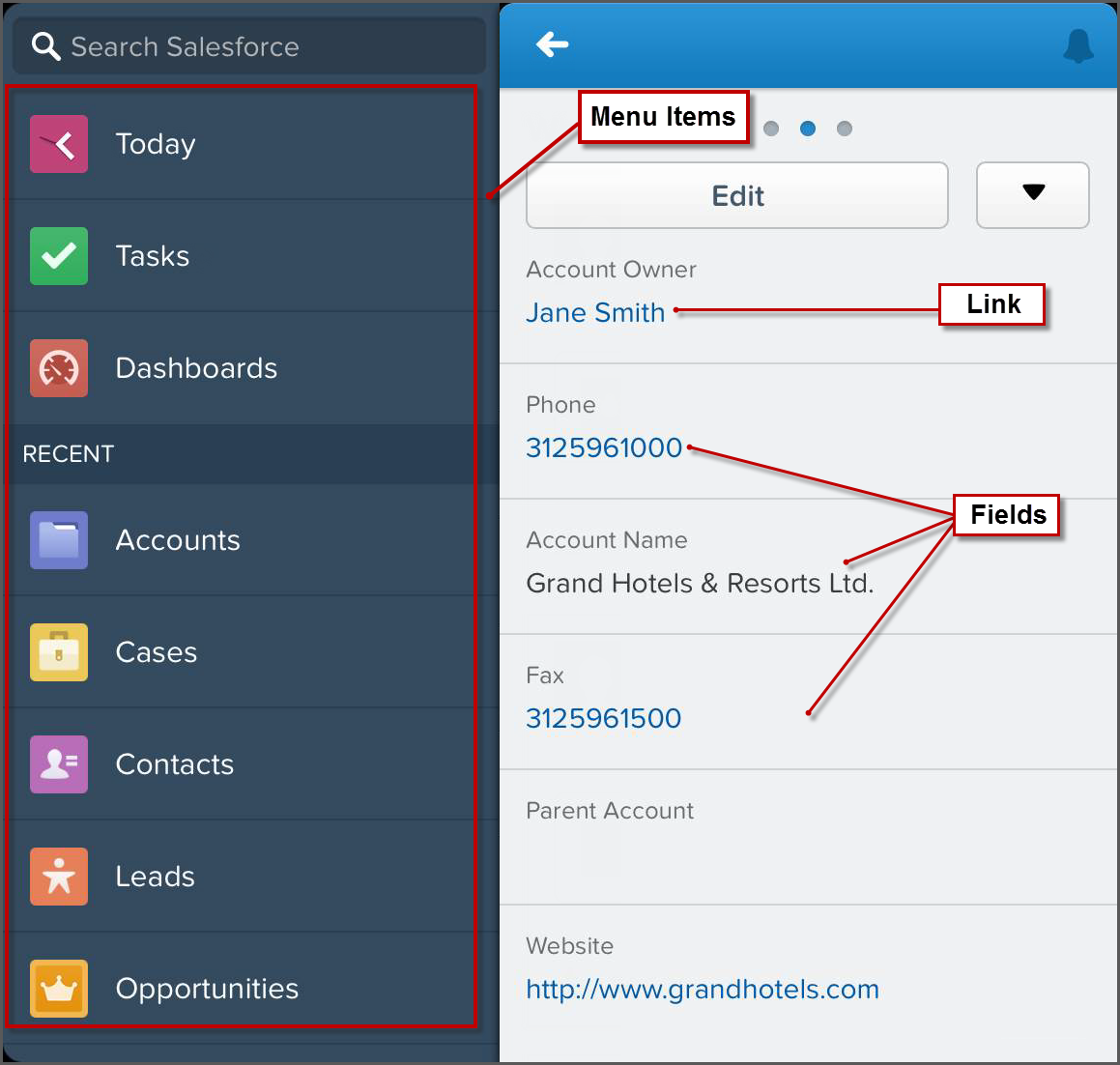
Now let’s look at how these elements appear in a mobile context, like Salesforce1. We still see collections of fields, and tapping links navigates us to the indicated record or external website. That said, tabs don’t exist in the mobile app.
- Menu Items
- Instead of tabs, mobile users access objects from items in the navigation menu. Like a tab, each menu item in the Recent section corresponds to a type of object, such as an account or contact. Objects are surfaced based on which objects you’ve viewed or worked with recently. Tapping Show More displays all the objects available based on your profile and permissions. When you tap one of these items, such as Accounts, you can create a new record or look your recently visited records. To edit an existing record, you first need to tap the record to open it.
- Menu items also include things like Tasks, Dashboards, and Chatter, most of which we’ll talk about later in this guide.