


Force.com Platform Fundamentals
 j
jIntroducing Mobile Dashboards
The information we’ve packed into our Recruiting Dashboard can be useful to a lot of people—even recruiters away from their desks. Before we get into Salesforce1 again, we need to make sure dashboards are enabled for mobile. If Dashboards aren’t in the navigation menu, users won’t see them at all. Let’s take a quick look at the configuration for our mobile navigation.
- From Setup, enter Navigation in the Quick Find box, then select Salesforce1 Navigation.
This is the page that dictates what the navigation menu in Salesforce1 looks like. The first item in the list becomes our users’ landing page in Salesforce1, and since this configuration is the same for all of our users, we want the first item to be something useful for everyone. The usefulness principle extends throughout the configuration: we want to put the items that users want most at the top.
The Today element corresponds to an app that helps users plan for and manage their day by integrating calendar events from their mobile device with their Salesforce tasks, contacts, and accounts. Available in the Salesforce1 downloadable apps only.
The Smart Search Items element, which becomes a dynamic list of recently used objects, can expand into a set of eight or more menu items in the mobile experience, and it might end up pushing other elements below the scroll point if you put it near the top of the menu. Anything you put above the Smart Search Items element appears in the unlabeled first section of the navigation menu. Anything you put below the Smart Search Items element appears in the Apps section of the navigation menu.
- Arrange the items in the Selected area using the Up or Down arrows like so:
- Today
- Tasks
- Chatter
- Smart Search Items
- Dashboards
Now that we’re sure dashboards appear in Salesforce1 for our organization, let’s see how dashboards work on a mobile device.
- Launch Salesforce1.
- From the navigation menu, tap Dashboards.
- From the list of recent dashboards, tap Recruiting Dashboard.
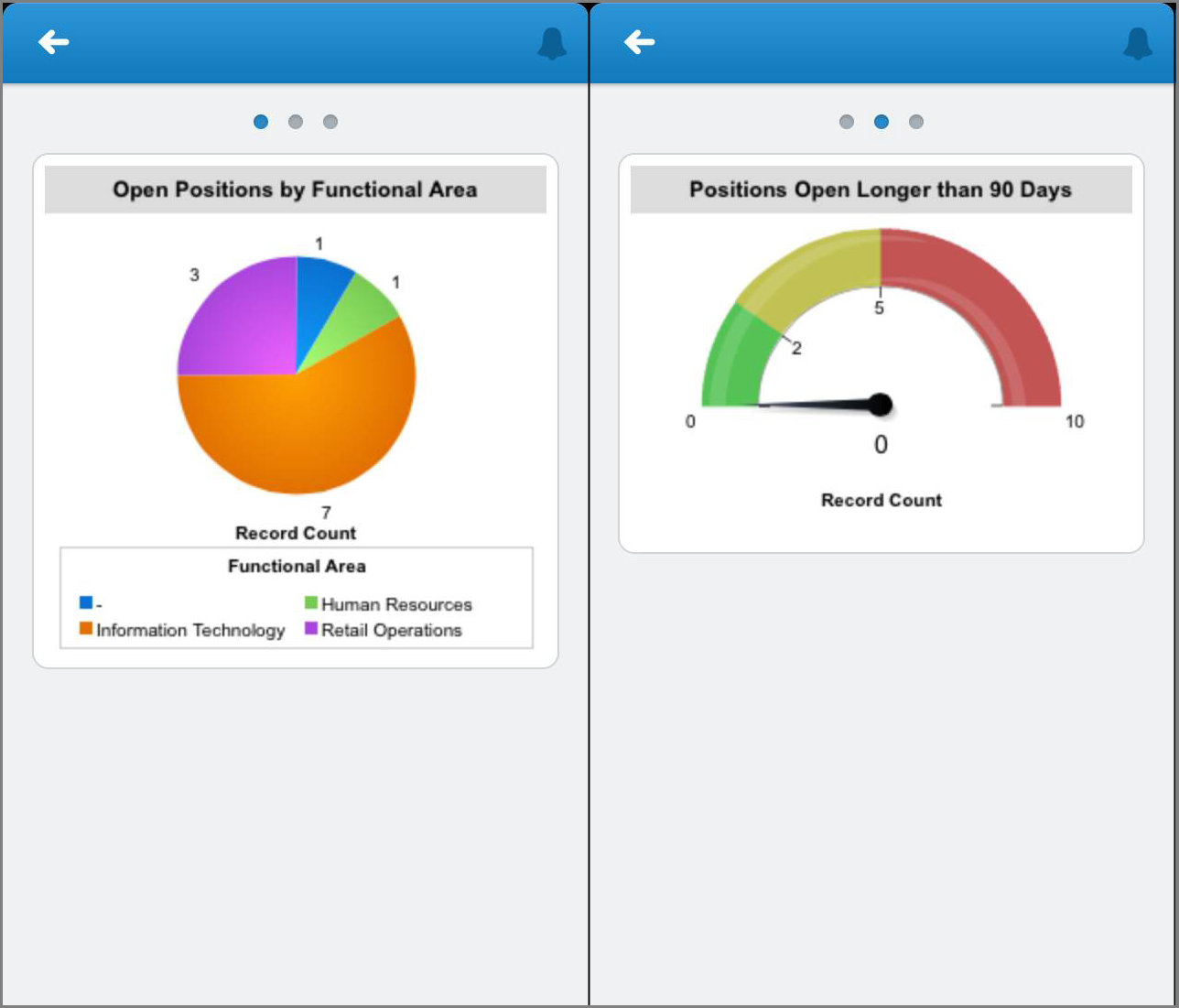
Our dashboard looks a little different in a mobile context. Instead of seeing all three columns in one view, we see all of each column in a single view. To see other columns, we can swipe left or right. To see the details for a component, we can tap on one. In this component view, we can tap on data points to see their values highlighted.