


Apex Developer Guide
 j
jNewer Version Available
Rewriting URLs for Force.com Sites
Sites provides built-in logic that helps you display user-friendly URLs and links to site visitors. Create rules to rewrite URL requests typed into the address bar, launched from bookmarks, or linked from external websites. You can also create rules to rewrite the URLs for links within site pages. URL rewriting not only makes URLs more descriptive and intuitive for users, it allows search engines to better index your site pages.
For example, let's say that you have a blog site. Without URL rewriting, a blog entry's URL might look like this: http://myblog.force.com/posts?id=003D000000Q0PcN
With URL rewriting, your users can access blog posts by date and title, say, instead of by record ID. The URL for one of your New Year's Eve posts might be: http://myblog.force.com/posts/2009/12/31/auld-lang-syne
You can also rewrite URLs for links shown within a site page. If your New Year's Eve post contained a link to your Valentine's Day post, the link URL might show: http://myblog.force.com/posts/2010/02/14/last-minute-roses
To rewrite URLs for a site, create an Apex class that maps the original URLs to user-friendly URLs, and then add the Apex class to your site.
To learn about the methods in the Site.UrlRewriter interface, see UrlRewriter.
Creating the Apex Class
- Class and Methods Must Be Global
- The Apex class and methods must all be global.
- Class Must Include Both Methods
- The Apex class must implement both the mapRequestUrl and generateUrlFor methods. If you don't want to use one of the methods, simply have it return null.
- Rewriting Only Works for Visualforce Site Pages
- Incoming URL requests can only be mapped to Visualforce pages associated with your site. You can't map to standard pages, images, or other entities.
- To rewrite URLs for links on your site's pages, use the !URLFOR function with the $Page merge variable. For example,
the following links to a Visualforce page named myPage:
- See the “Functions” appendix of the Visualforce Developer's Guide.
- Encoded URLs
- The URLs you get from using the Site.urlRewriter interface are encoded. If you need to access the unencoded values of your URL, use the urlDecode method of the EncodingUtil Class.
- Restricted Characters
- User-friendly URLs must be distinct from Salesforce URLs. URLs with a three-character entity prefix or a 15- or 18-character ID are not rewritten.
- You can't use periods in your rewritten URLs.
- Restricted Strings
- You can't use the following reserved strings as part of a rewritten URL
path:
- apexcomponent
- apexpages
- ex
- faces
- flash
- flex
- home
- ideas
- images
- img
- javascript
- js
- lumen
- m
- resource
- search
- secur
- services
- servlet
- setup
- sfc
- sfdc_ns
- site
- style
- vote
- widg
- You can't use the following reserved strings at the end of a rewritten
URL path:
- /htmldbcthumbnail
- /dbcthumbnail
- /aura
- /auraResource
- auraFW
- /m
- /mobile
- /l
- /HelpAndTrainingDoor
- Relative Paths Only
- The PageReference.getUrl() method only returns the part of the URL immediately following the host name or site prefix (if any). For example, if your URL is http://mycompany.force.com/sales/MyPage?id=12345, where “sales” is the site prefix, only /MyPage?id=12345 is returned.
- You can't rewrite the domain or site prefix.
- Unique Paths Only
- You can't map a URL to a directory that has the same name as your site prefix. For example, if your site URL is http://acme.force.com/help, where “help” is the site prefix, you can't point the URL to help/page. The resulting path, http://acme.force.com/help/help/page, would be returned instead as http://acme.force.com/help/page.
- Query in Bulk
- For better performance with page generation, perform tasks in bulk rather than one at a time for the generateUrlFor method.
- Enforce Field Uniqueness
- Make sure the fields you choose for rewriting URLs are unique. Using unique or indexed fields in SOQL for your queries may improve performance.
- You can also use the Site.lookupIdByFieldValue method to look up records by a unique field name and value. The method verifies that the specified field has a unique or external ID; otherwise it returns an error.
- Here is an example, where mynamespace is the namespace, Blog is the custom object name, title is the custom
field name, and myBlog is the value to look for:
Adding URL Rewriting to a Site
- From Setup, enter Sites in the Quick Find box, then select Sites.
- Click New or click Edit for an existing site.
- On the Site Edit page, choose an Apex class for URL Rewriter Class.
- Click Save.
Code Example
In this example, we have a simple site consisting of two Visualforce pages: mycontact and myaccount. Be sure you have “Read” permission enabled for both before trying the sample. Each page uses the standard controller for its object type. The contact page includes a link to the parent account, plus contact details.
Before implementing rewriting, the address bar and link URLs showed the record ID (a random 15-digit string), illustrated in the “before” figure. Once rewriting was enabled, the address bar and links show more user-friendly rewritten URLs, illustrated in the “after” figure.
The Apex class used to rewrite the URLs for these pages is shown in Example URL Rewriting Apex Class, with detailed comments.
Example Site Pages
This section shows the Visualforce for the account and contact pages used in this example.
Example URL Rewriting Apex Class
Before and After Rewriting
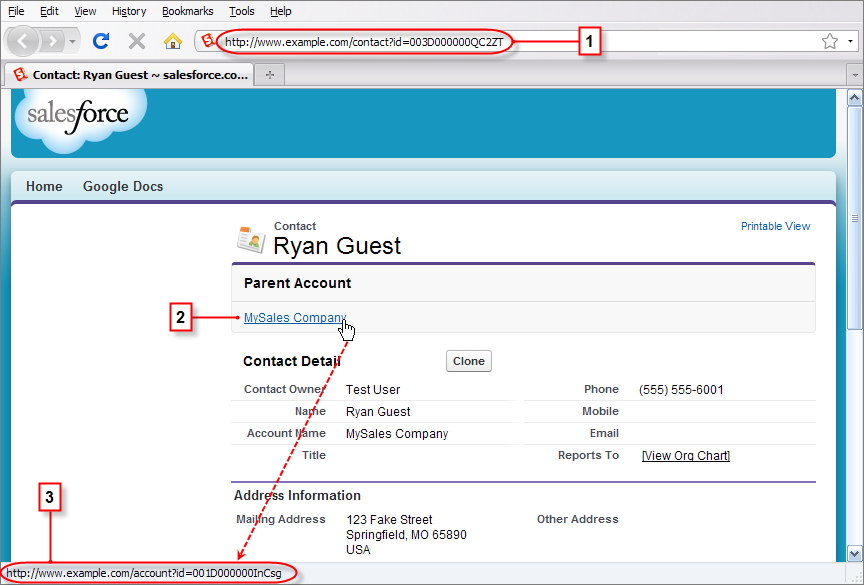
- The original URL for the contact page before rewriting
- The link to the parent account page from the contact page
- The original URL for the link to the account page before rewriting, shown in the browser's status bar
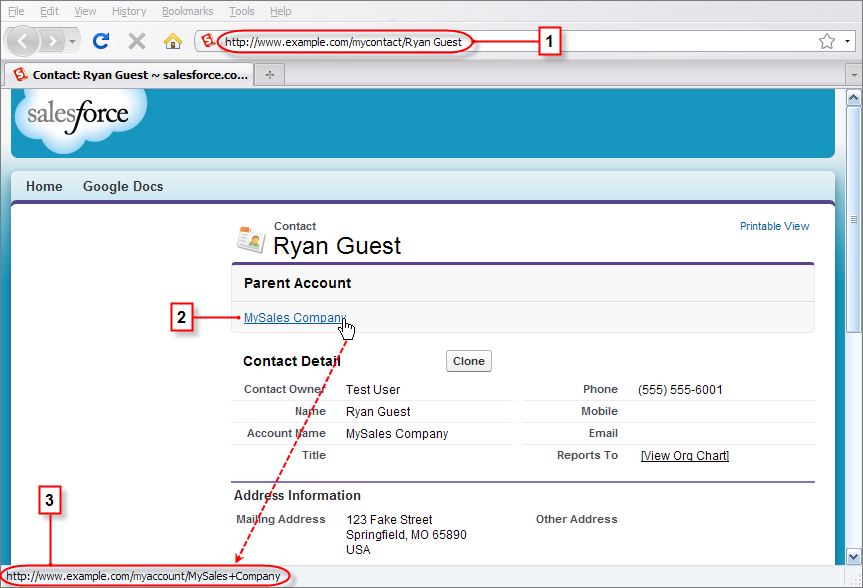
- The rewritten URL for the contact page after rewriting
- The link to the parent account page from the contact page
- The rewritten URL for the link to the account page after rewriting, shown in the browser's status bar