


Salesforce Mobile Push Notifications Implementation Guide
 j
jNewer Version Available
Create a Connected App for Apple iOS
To create a connected app, log in to your Salesforce Developer Edition org and perform these steps.
- From Setup, enter Apps in the Quick Find box, then select Apps.
- In the Connected Apps section, click either Edit next to an existing connected app, or New to create a new connected app.
-
If you’re creating a new connected app:
- Enter a unique name for your connected app. The API name field is auto-filled.
- Optionally, fill in other fields, such as a description for your connected app.
- Enter a contact email address.
- In the OAuth Settings section, select Enable OAuth Settings.
- Enter a callback URL.
- Select OAuth scopes. At a minimum, select Access and manage your data (api) and Perform requests on your behalf at any time (refresh_token).
- Under Mobile App Settings, select Push Messaging Enabled.
-
For Supported Push Platform, select Apple.When you select the Supported Push Platform option, the dialog expands to show more settings.
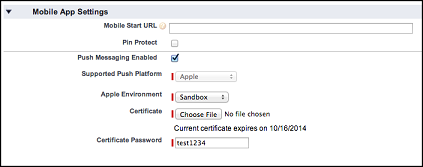
- Select the Apple environment that is valid for your APNS push notifications certificate.
-
For Certificate, select the .p12 certificate
file that you received from APNS when you registered your app for
push notifications (for example, appkey.p12).

- Enter the password for your .p12 certificate file.