


Salesforce1 Mobile App Developer Guide
 j
jTest Out the Salesforce1 Navigation Menu
- Open the Salesforce1 app on your mobile device.
- Tap
 to access the navigation menu.
 -
Pull down and release the navigation menu to refresh it.
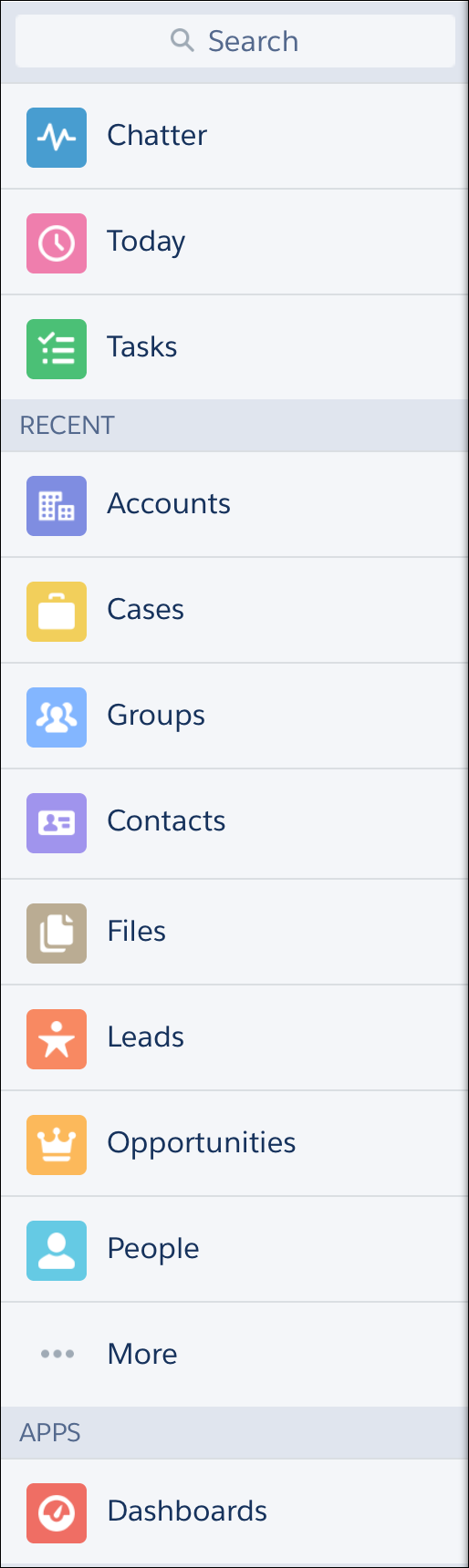
You should see the Chatter, Today, Tasks items at the top, and then the Recent section, which is created from the Smart Search Items element.
-
Scroll down to the Apps section.This section contains any menu item that was put below the Smart Search Items element, whether it’s really an “app” or not.
Now that we’ve addressed the Salesforce1 navigation menu, let’s look at configuring our data
for mobile.