


Data Loader Guide
 j
jNewer Version Available
Step One: Create the Encryption Key
| Available in: Salesforce Classic and Lightning Experience |
| Available in: Enterprise, Performance, Unlimited, Developer, and Database.com Editions |
When you use Data Loader from the command line, there’s no user interface. Therefore, you provide the information that you would enter in the user interface in a text file named process-conf.xml. For example, you add the username and password that Data Loader uses to log in to Salesforce. The password must be encrypted before you add it to the process-conf.xml file, and creating the key is the first step in that process.
- Open a command prompt window by selecting . Alternatively, you can click , enter cmd in the Open field, and click OK.
- In the command window, enter cd\ to navigate to the root directory of the drive where Data Loader is installed.
- Navigate to the Data Loader
\bin directory by entering this command. Be sure to replace the file
path with the path from your system.
cd C:\Program Files (x86)\salesforce.com\Apex Data Loader 22.0\bin
- Create an encryption key by entering the following command. Replace <seedtext> with any
string.
encrypt.bat —g <seedtext>
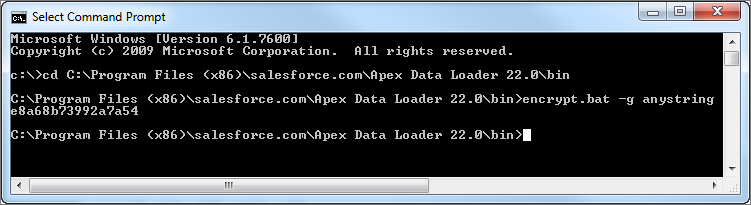
- Copy the generated key from the command window to a text file named key.txt and make a note of the file path. In this example, the generated key is e8a68b73992a7a54.
The encryption utility encrypts passwords but not data. HTTPS with TLS 1.0 or later encrypts data transmitted by the Apex Data Loader.