


Force.com Platform Fundamentals
 j
jTry It Out: Define a Validation Rule for Min and Max Pay
For our first validation rule, let's start off simple: Min Pay should never be greater than Max Pay.
- From the Positions tab, click
 to open the
quick access menu (if it isn't open already).
to open the
quick access menu (if it isn't open already). - Hover over View Validation Rules, and click New.
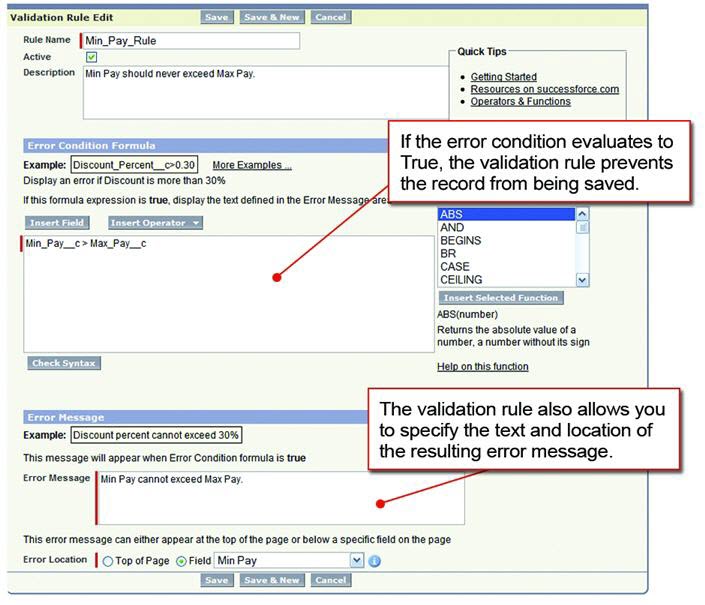
- In the Rule Name text box, enter Min_Pay_Rule.
The name of a validation rule can't include any spaces, but if you forget, the platform helpfully changes them to underscores (_) for you.
- Select the Active checkbox.
This checkbox specifies whether the validation rule should start working as soon as it's saved. Because this rule is pretty straightforward (and because we want to test it later!), it makes sense to turn it on right away.
- In the Description text box, enter Min Pay should never exceed Max Pay.
Now it's time to define the meat of our validation rule: the error condition. If you have a sense of déjà vu when looking at the Error Condition Formula area of the page, don't be alarmed! Just like formula fields and default field values, a validation rule can leverage a number of built-in operators and functions to define a true-or-false error condition that determines whether data is valid. When this condition evaluates to true, an error message displays and the record can't be saved.
We want our error condition to be true whenever Min Pay is greater than Max Pay, so let's use our formula editor to specify that now:
- Click the Insert Field button. Just like in the formula field editor, two columns appear in an overlay.
- In the left column, select Position.
- In the right column, select Min Pay.
- Click Insert.
- Click the Insert Operator button, and choose Greater Than.
- Click the Insert Field button once again.
- In the left column, select Position.
- In the right column, select Max Pay.
- Click Insert.
You should now have an error condition formula that looks like this:
1Min_Pay__c > Max_Pay__cNow the only thing that remains is to specify the error message when our error condition evaluates to true.
- In the Error Message text box, enter Min Pay cannot exceed Max Pay.
- Next to the Error Location field, select Field and choose Min Pay.
- Click Save.
Easy! Now that we've familiarized ourselves with a simple validation rule, let's define one that's a little trickier.