


Salesforce App Developer Guide
 j
jCanvas Apps in the Chatter Publisher and Salesforce App Action Bar
Keep these best practices and guidelines in mind when making your canvas apps available
in the publisher and action bar.
- When you access a canvas app from the publisher in the full Salesforce site, the user
interface is different than when you access a canvas app from the action bar or action menu in
the Salesforce app. For example, in the feed in the full Salesforce site, the Share button is
at the bottom of the feed item. In the Salesforce app, the Share button is at the top of the screen.
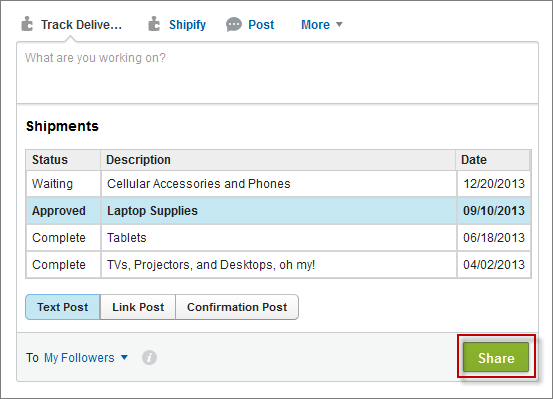
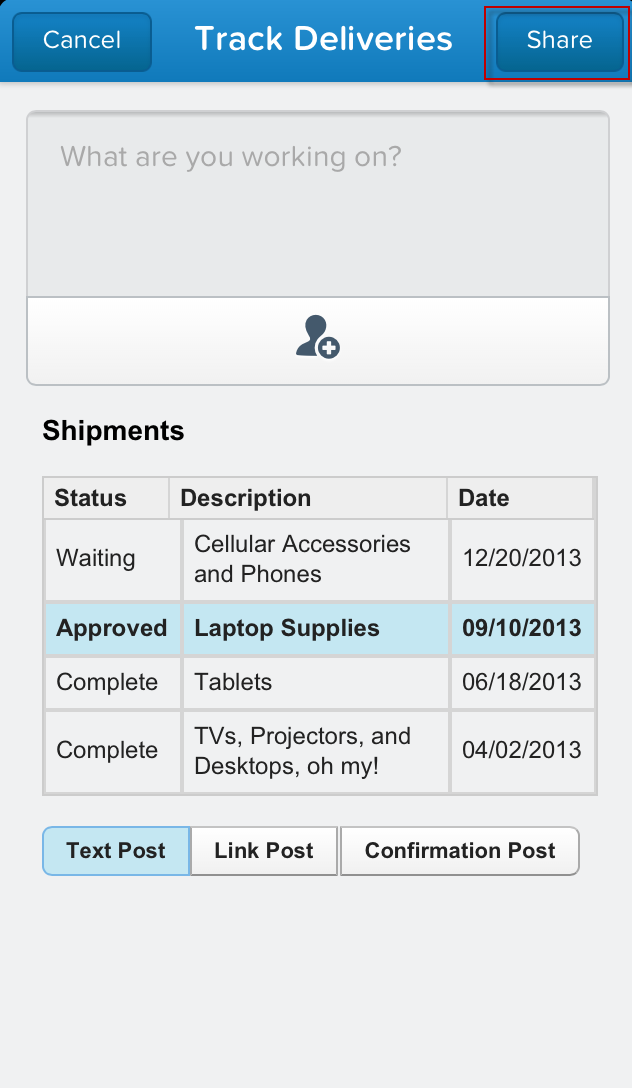
- When creating a canvas custom action, the height available for that action in the full Salesforce site is much greater than the height for that action in the app. Use the Dimensions object in the Force.com Canvas SDK to render your canvas app in the correct size.
- Keep the labels for canvas custom actions concise. Longer labels may not fully display in the publisher.
- When you access a canvas app from the publisher, the What are you working on? pane appears above the canvas app. This pane remains fixed, even if your canvas app scrolls.
- When the request comes into your Web application that’s exposed as a canvas app, you can determine the type of device that’s making the request. Use this information to render your app based on the requesting device for a better user experience. For example, you can add logic so that if the request comes from a mobile phone, only four lines of text are displayed; if the request comes from a tablet, ten lines of text are displayed.
- In most cases, you’ll want to specify 100% for the canvas app height and width in your CSS. This ensures that the canvas app takes up the maximum available screen space.
- Canvas apps appear in an iFrame, so you can format the app appearance as you would any standard iFrame.