Force.com IDE Developer Guide
 j
jDebug Logs for Apex Test Results
When you run a test, the output is sent to the log. Debug logs display on the right
side of the Force.com IDE’s Apex Test
Results view.
- The first part of the log details the events that occurred during the test run.
- The next few lines give details on how long it took to execute specific lines of code. This information is useful for performance tuning.
- The debug log then lists how many resources a program uses and the total amount available for each resource. The Apex runtime engine tracks the resources that every script uses so that a single script doesn’t monopolize the servers. If you write a script that goes over one of the limits, you receive an error message.
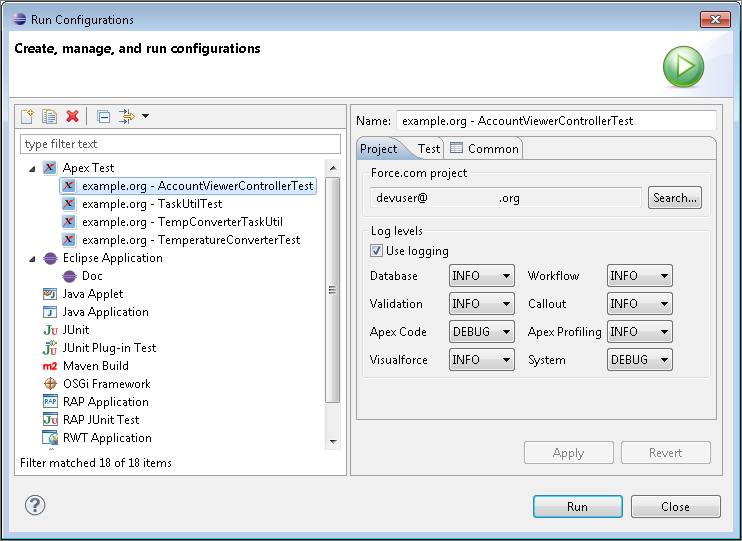
To define logging levels for Apex test execution:
- Select .
- To create a test run configuration, select New launch
configuration (
 ).
). - To customize your log levels, select the Project tab, and then select Use logging.