


Lightning Platform Fundamentals
 j
jTry It Out: Add a Gauge Component
Now let's create a gauge component that shows us how we're doing with positions that have been open for longer than 90 days.
- Click the Components tab.
- Drag a gauge component onto the middle column of your dashboard.
- Click Edit Title, and enter Positions Open Longer Than 90 Days.
- Click the Data Sources tab and find and select the Positions Open Longer Than 90 Days report.
- Drag the report and drop it onto the gauge component.
Now, let's change how our gauge looks. Just like the conditional highlighting in our matrix report, this gauge can display different colors depending on the total count of positions that have been open too long. We want a green color if there are fewer than two positions, yellow if there are between two and five, and red if the value is over five.
- Click
 on the gauge to open the component
editor.
on the gauge to open the component
editor. - Click the Formatting tab and set the following fields.
Formatting the Gauge Component
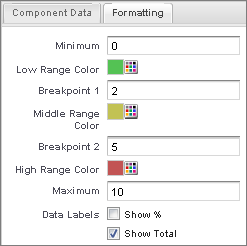
- For Minimum, enter 0.
- For Low Range Color, pick a shade of green.
- For Breakpoint 1, enter 2.
- For Middle Range Color, leave the shade of yellow selected.
- For Breakpoint 2, enter 5.
- For High Range Color, pick a shade of red.
- For Maximum, enter 10.
- Click OK.
Perfect! Our recruiting dashboard now contains two components.