


Lightning Platform Fundamentals
 j
jNewer Version Available
Check It Out in Mobile
Before we move on, let’s take a look at how our new fields appear on a mobile device.
- Launch Salesforce on your mobile device. If prompted, log in.
- Tap
 to open the navigation menu, and then tap Positions. If
you don’t see Positions in the list of items, remember to tap Show
More.
to open the navigation menu, and then tap Positions. If
you don’t see Positions in the list of items, remember to tap Show
More. - Tap New to create a position record.
Just like when we first created fields for the Position object, all of our advanced fields appear in the app automatically. Verify that all of our advanced fields work as expected.
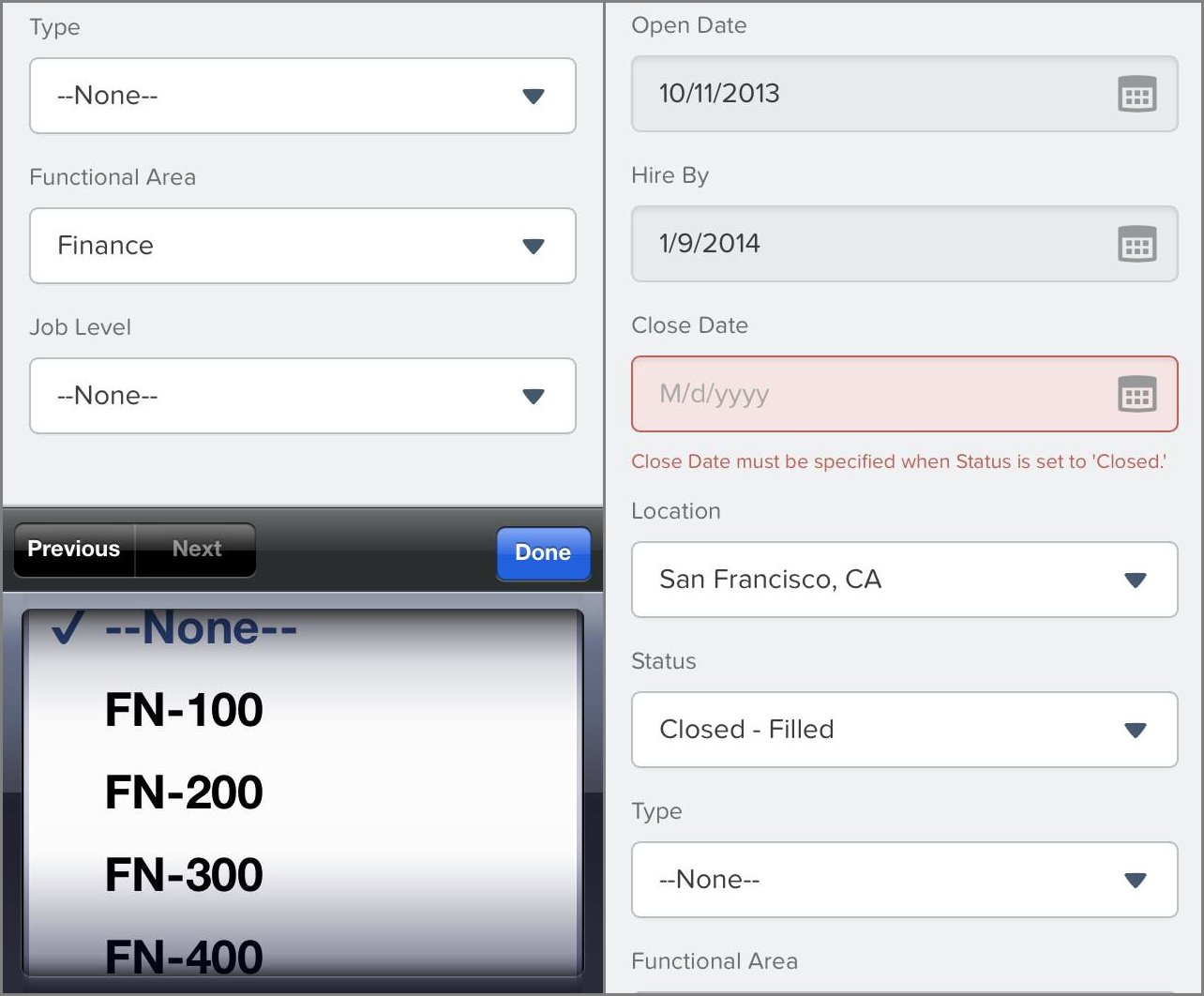
All of our advanced fields are in order if:
- We can only update Job Level once we’ve selected a value for Functional Area
- We don’t see the Days Open formula field
- Open Date has already been populated with today’s date
- Hire By has already been populated with 90 days from today
- A position’s Min Pay can’t be more than its Max Pay
- A position’s Status can’t be Closed – Filled or Closed – Not Approved if Close Date is empty
We also want to check that the Days Open field is working according to plan, but since we created a position when we checked our fields in the full site, we can look at that existing record.
- Tap Cancel to return to the list of recent position records.
- Tap the position record we just created.
- Scroll down until you see Days Open.
We see that, just like in the full site, Days Open shows the number of days that have passed since Open Date: 0.
The Positions tab is now fully functional, with a couple of validation rules to ensure that users don't make certain mistakes. But are the fields where we want them? Are the fields that must have values marked as required? In the next section, we'll fine-tune our Position custom object by modifying its page layout.