


ISVforce Guide
 j
jNewer Version Available
Manage a Connected App
| Available in: both Salesforce Classic and Lightning Experience |
| Connected Apps can be created in: Group, Professional,
Enterprise, Performance, Unlimited, and Developer
Editions Connected Apps can be installed in: All Editions |
| User Permissions Needed | |
|---|---|
| To view the Connected Apps page: | View Configuration |
| To read, create, update, or delete connected apps: | Customize Application AND either Modify All Data OR Manage Connected Apps |
| To update all fields, except Profiles, Permission Sets, and Service Provider SAML attributes: | Customize Application AND either Modify All Data OR Manage Connected Apps |
| To update Profiles, Permission Sets, and Service Provider SAML attributes: | Customize Application AND Modify All Data |
| To install and uninstall connected apps: | Customize Application AND either Modify All Data OR Manage Connected Apps |
| To install and uninstall packaged connected apps: | Customize Application AND either Modify All Data OR Manage Connected Apps AND Download AppExchange Packages |
- To view and update properties of a connected app, from Setup, enter Connected Apps in the Quick Find box, then select Connected Apps.
- Click the name of the connected app to view its detail page.
- Click Edit Policies to change the app’s configuration. For example, specify a start URL, add your own connected app handler, add custom attributes, or enable user provisioning. To tighten user access, under OAuth Policies, set Permitted Users to Admin-approved users are pre-authorized.
Connected Apps Installed by Salesforce
Some Salesforce client apps, such as the Salesforce app and Salesforce for Outlook, are implemented as connected apps. Salesforce automatically installs them in your org.
Salesforce distributes these client-type connected apps in two managed packages: one for Salesforce for Android and Salesforce for iOS and one for other mobile apps. The connected apps included in the package change with each release. Salesforce installs the package the first time a user accesses one of the apps.
To install or reinstall the Salesforce app package for connected apps, you can install it from App Exchange.
Salesforce packages appear in Setup under the Installed Packages List.
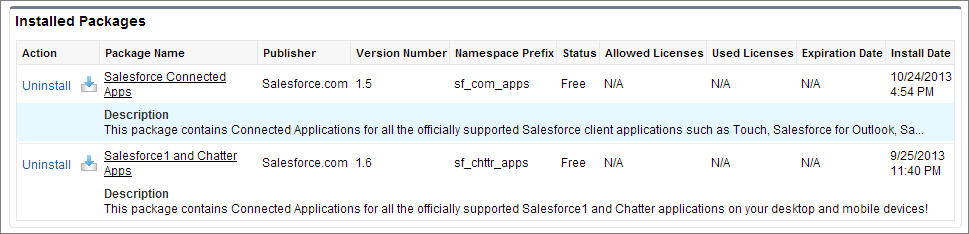
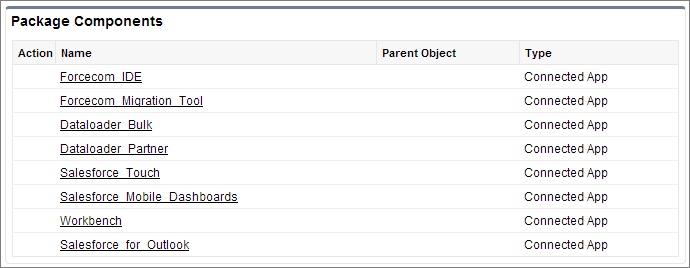
Click a package name to see the list of components. The following are some components in the Salesforce Connected Apps package.
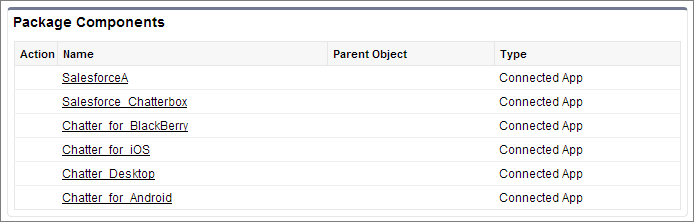
The following are some components for the Salesforce app and Chatter app packages.
- From Setup, enter Connected Apps in the Quick Find box, then selected Connected Apps.
- View the list of connected apps. The connected apps that Salesforce installs appear in the list as installed by a managed package. They appear along with your other installed connected apps.
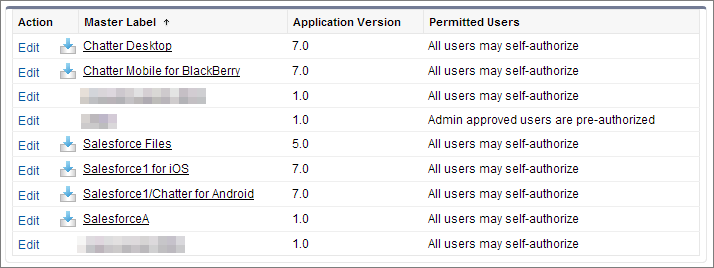
Connected Apps Installed from the Connected Apps OAuth Usage Page
In addition to the connected apps installed from managed packages, this list contains OAuth connected apps installed from the Connected Apps OAuth Usage page.