


Lightning Communities Developer Guide
 j
jNewer Version Available
Reuse Content with CMS Connect JSON
Content Item or Content List?
Suppose that you want to reuse JSON content that’s in your CMS and display it in your community. CMS Connect supports two basic types of JSON content. What they’re called in one CMS can differ from what another CMS calls them. To keep things simple, in CMS Connect, we call them content item and content list.
An example of a content item is a single blog post. When it displays on a page, it’s the full blog post, not just a blurb about it. A content list, on the other hand, is a grouping of items, such as a series of blogs. When a content list displays on a page, you see a title and summary for each list item, with a link to the full blog.
How to Reuse JSON Content
The process boils down to three key steps.
- If needed, set up Cross-Origin Resource Sharing (CORS). If your CMS resources aren’t available to your community, add your community host to the trusted hosts in the CORS header of your CMS system. All CMS connections must use unauthenticated HTTPS (HTTP over SSL).
- Create a CMS connection. When you set up the connection, you define whether the content is a content item or a content list and specify the server URL and content paths.
- Add CMS Connect (JSON) components to your community pages. Using the Community Builder, drag the component to your community page and configure its properties. Use JSON expressions to bring in the title, author, blog content, and so on from your CMS.
Preview Your JSON Content
It helps to preview the JSON response body so that you understand the data format of your CMS system. For example, suppose that the URL for your WordPress website is https://capricornblog.wordpress.com. Enter the full JSON endpoint for the CMS content in a browser, for example, https://public-api.wordpress.com/rest/v1.1/sites/capricornblog.wordpress.com/posts.
You use this endpoint when you define the CMS connection. The endpoint has two parts: the server URL and a JSON path. In this example, the server URL points to a WordPress site, and the JSON path is the path for a set of blogs. When you configure a CMS Connect (JSON) component, you retrieve the blog series as a content list, and each individual blog as a content item.

When you enter the endpoint in a browser, you see the data format of the JSON response body. Previewing the response helps you understand how to configure the CMS Connect component on your community pages.
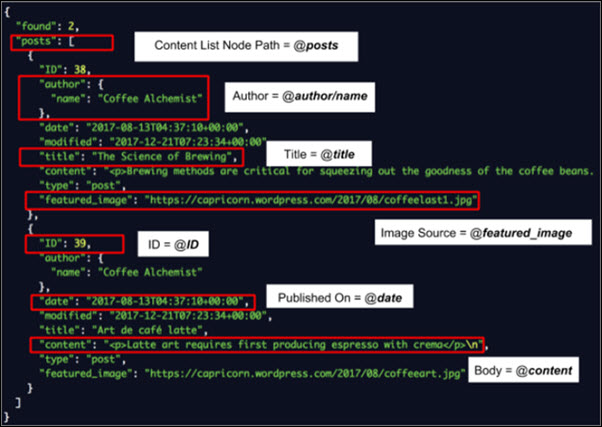
Example Drupal Responses
Example
Let’s say you have JSON content in a Drupal CMS. Here’s what the JSON response body for an example content item looks like.
1{
2	"data": {
3		"type": "node--page",
4		"id": "c53cf56c-f70d-456e-838b-47788742b074",
5		"attributes": {
6			"nid": 5,
7			"uuid": "c53cf56c-f70d-456e-838b-47788742 b074",
8			"vid ": 5,
9			"langcode": "en",
10			"title": "This is an Example.",
11			"created": 1502133909,
12			"changed": 1502133933,
13			"body": {
14				"value": "This is the body.",
15				"summary ": ""
16			}
17		},
18		"relationships": {
19			"type ": {
20				"data ": {
21					"type": "node_type--node_type",
22					"id": "5b80bc9e-dc78-4612-add8-e46b2e2ff616"
23				}
24			}
25		}
26	}
27}In this example, @data points to the parent node. Attribute nodes for @data are nested below the parent.
When you configure a CMS Connect (JSON) component, use JSON expressions to specify the connection and content that you want to retrieve.
For example, this JSON expression pulls the title of the content.
1@data/attributes/titleThis expression retrieves the content ID.
1@data/idAnd this JSON expression retrieves the content body, for example, the blog text.
1@data/attributes/body/valueJSON expressions can handle any node depth.
Example
Here’s an example of a JSON content list in a CMS connection that uses Drupal. The path to the content list is {baseUrl}/jsonApi/node/page.
1{
2  "data": {
3    "type": "node--page",
4    "id": "c53cf56c-f70d-456e-838b-47788742b074",
5    "attributes": {
6      "nid": 5,
7      "uuid": "c53cf56c-f70d-456e-838b-47788742b074",
8      "vid": 5,
9      "langcode": "en",
10      "status": true,
11      "title": "Test",
12      "created": 1502133909,
13      "changed": 1502133933,
14      "promote": false,
15      "sticky": false,
16      "revision_timestamp": 1502133933,
17      "revision_log": null,
18      "revision_translation_affected": true,
19      "default_langcode": true,
20      "path": null,
21      "body": {
22        "value": "<p>Here is the header<\/p>\r\n",
23        "format": "basic_html",
24        "summary": ""
25      }
26    },
27    "relationships": {
28      "type": {
29        "data": {
30          "type": "node_type--node_type",
31          "id": "5b80bc9e-dc78-4612-add8-e46b2e2ff616"
32        },
33        "links": {
34          "self": "https:\/\/www.sandbox7.net\/jsonapi\/node\/page\/c53cf56c-f70d-456e-838b-47788742b074\/relationships\/type",
35          "related": "https:\/\/www.sandbox7.net\/jsonapi\/node\/page\/c53cf56c-f70d-456e-838b-47788742b074\/type"
36        }
37      },
38      "uid": {
39        "data": {
40          "type": "user--user",
41          "id": "d5808807-9f3d-4f10-a031-c3340172b88e"
42        },
43        "links": {
44          "self": "https:\/\/www.sandbox7.net\/jsonapi\/node\/page\/c53cf56c-f70d-456e-838b-47788742b074\/relationships\/uid",
45          "related": "https:\/\/www.sandbox7.net\/jsonapi\/node\/page\/c53cf56c-f70d-456e-838b-47788742b074\/uid"
46        }
47      },
48      "revision_uid": {
49        "data": {
50          "type": "user--user",
51          "id": "d5808807-9f3d-4f10-a031-c3340172b88e"
52        },
53        "links": {
54          "self": "https:\/\/www.sandbox7.net\/jsonapi\/node\/page\/c53cf56c-f70d-456e-838b-47788742b074\/relationships\/revision_uid",
55          "related": "https:\/\/www.sandbox7.net\/jsonapi\/node\/page\/c53cf56c-f70d-456e-838b-47788742b074\/revision_uid"
56        }
57      }
58    },
59    "links": {
60      "self": "https:\/\/www.sandbox7.net\/jsonapi\/node\/page\/c53cf56c-f70d-456e-838b-47788742b074"
61    }
62  },
63  "links": {
64    "self": "https:\/\/www.sandbox7.net\/jsonapi\/node\/page\/c53cf56c-f70d-456e-838b-47788742b074"
65  }
66}
You can display JSON content from multiple sources on your community pages. Set up JSON connections in your CMS Connect workspace. Then drag components to your pages and define JSON expressions that pull in your CMS content.