


Lightning Platform Fundamentals
 j
jBecoming Familiar with Setup Detail Pages and Related Lists
You may recall when we first introduced the concept of objects that we learned: “Whether they're standard or custom, Lightning platform objects not only provide a structure for storing data but they also power the interface elements that allow users to interact with the data, such as tabs, the layout of fields on a page, and lists of related records.” If you've been following along closely, you might have been wondering why we didn't get to define any fields (other than the identifier field of Position Title) or user interface elements (other than the Positions tab) when we created our Position object. If fields and user interface elements are a part of the definition of what a custom object is all about, where do we get to define them?
It turns out that the Lightning platform differentiates between the initial creation of certain components and details related to those components. In other words, the information that we see when we define or edit a custom object is different from the information that we see when we view a custom object that's already defined. Let's go back to our custom object list page to see how this difference is reflected in the platform interface.
- From Setup, enter Objects in the Quick Find box, then select Objects.
- Edit
- This link takes us back to the Custom Object edit page where we originally defined our Position object.
- Del
- This link deletes the custom object, including any records, tabs, reports, or other components associated with that object.
- Position
- This link takes us to the custom object detail page for our Position object.
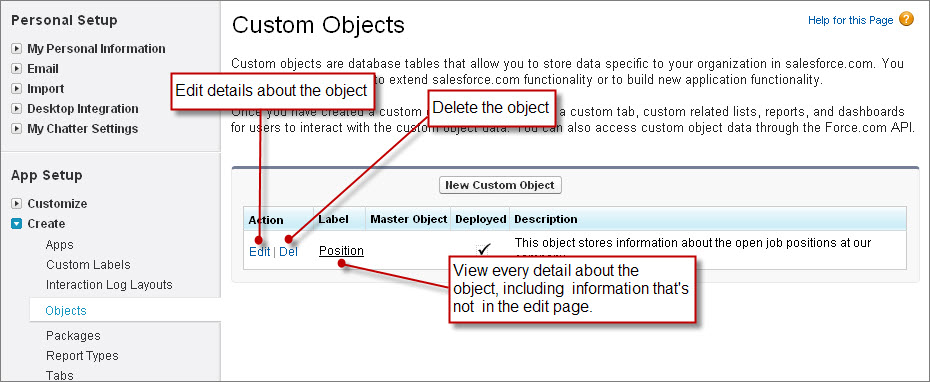
We're already familiar with the edit page from when we defined our Position object, and we certainly don't want to delete our object. Let's go ahead and open up the detail page to see what we can do there.
- Click Position.
As you can see, the Custom Object edit page that we filled out when we defined our Position object was just the tip of the iceberg. The top two areas of the Position detail page include all of the information that we originally specified, plus a few standard fields that the platform includes with every object. Below those areas are several additional groupings of data that allow us to do more with our Position object.
In Lightning platform terms, those groupings of data are called related lists, and they're a big part of what makes the platform so powerful. A related list is a list of records or other components that are associated with whatever we're viewing. Related lists appear in both the main application and in the Setup areas and represent a relationship between the items that appear in the related list and the object or record that we're viewing in the detail area. We'll learn a lot more about relationships in Expanding the Simple App Using Relationships, but for now, just understand that anything that appears in an object's related list is directly related to that object.
Now that we've found out where we can continue customizing our Position custom object, let's use the Custom Fields & Relationships related lists to create some more fields in our Position object.
