Style Existing Visualforce Pages with Lightning Experience Stylesheets
You can control whether a page is styled with the look of Lightning Experience when viewed in Lightning Experience or the Salesforce mobile app with the lightningStylesheets attribute.
The lightningStylesheets attribute isn’t supported in Experience Cloud sites.
To style your Visualforce page to match the Lightning Experience UI when viewed in Lightning Experience or the Salesforce mobile app, set lightningStylesheets="true" in the <apex:page> tag. When the page is viewed in Salesforce Classic, it doesn’t get Lightning Experience styling.
1<apex:page lightningStylesheets="true">
If lightningStylesheets="true", the CSS scoping class slds-vf-scope is automatically applied to the Visualforce page’s <body> element. The scoping class is applied so that your content matches the Lightning Experience UI. If you set applyBodyTag or applyHtmlTag to false, you must manually add the scoping class slds-vf-scope.
Here is a standard Visualforce page without the lightningStylesheets attribute. The page is styled with the Classic UI.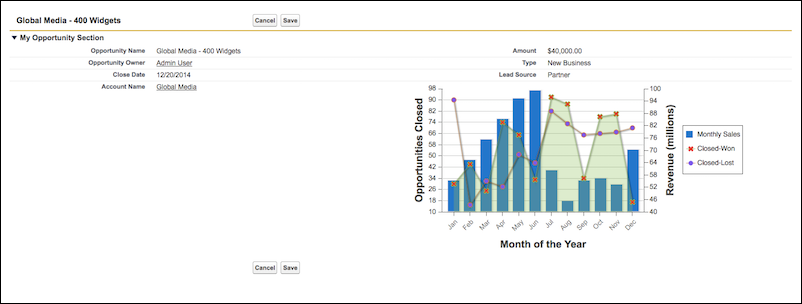
Here is the same Visualforce page with the lightningStylesheets attribute set to true.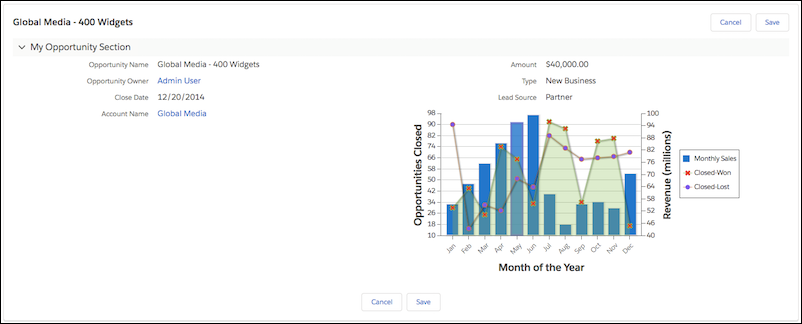
You can style most commonly used Visualforce components with the lightningStylesheets attribute. However, some components differ slightly in style from Lightning Experience. For example, <apex:inputFile>, and some <apex:inputField> elements use the browser’s default styling instead. Commonly used Visualforce components that don’t require styling, such as <apex:form>, <apex:outputText>, and <apex:param>, are still supported.
To include custom SLDS components that aren’t part of the Visualforce component library, use the <apex:slds/> tag with the code and the lightningStylesheets attribute.
- The
lightningStylesheets attribute doesn’t affect custom styling. Custom code must be updated to match the page’s SLDS styling.
- If set to false, the
standardStylesheets attribute for <apex:page> overrides and suppresses lightningStylesheets in Lightning Experience, Salesforce Classic, and the mobile app.
- The
<apex:slds> component has known issues when creating PDF files from Visualforce pages. For this reason, lightningStyleSheets does not support <apex:page renderAs="pdf"> or calls to PageReference.getContentAsPDF().
When using lightningStylesheets="true", most Visualforce buttons display as the neutral variant. Neutral styling of buttons occurs because there’s no selector hook to reliably determine which buttons must be branded. Add the .slds-vf-button_brand style attribute to the <apex:commandButton> to create a button styled based on your org branding:
1<apex:commandButton styleClass="slds-vf-button_brand" value="Refresh the Page">
When building new features, use <apex:slds> and implement the button using the Lightning Design System Button blueprint.
The following Visualforce components support the lightningStylesheets attribute or don’t require styling.
analytics:reportChartapex:actionFunctionapex:actionPollerapex:actionRegionapex:actionStatusapex:actionSupportapex:areaSeriesapex:attributeapex:axisapex:barSeriesapex:canvasAppapex:chartapex:chartLabelapex:chartTipsapex:columnapex:commandButtonapex:commandLinkapex:componentapex:componentBodyapex:compositionapex:dataListapex:dataTableapex:defineapex:detailapex:dynamicComponentapex:enhancedListapex:facetapex:flashapex:formapex:gaugeSeriesapex:iframeapex:imageapex:includeapex:includeLightningapex:includeScriptapex:inlineEditSupportapex:inputapex:inputCheckboxapex:inputFieldapex:inputFileapex:inputHiddenapex:inputSecretapex:inputTextapex:inputTextAreaapex:insertapex:legendapex:lineSeriesapex:listViewsapex:mapapex:mapMarkerapex:messageapex:messagesapex:outputFieldapex:outputLabelapex:outputLinkapex:outputPanelapex:outputTextapex:pageapex:pageBlockapex:pageBlockButtonsapex:pageBlockSectionapex:pageBlockSectionItemapex:pageBlockTableapex:pageMessageapex:pageMessagesapex:panelBarapex:panelBarItemapex:panelGridapex:panelGroupapex:paramapex:pieSeriesapex:radarSeriesapex:relatedListapex:remoteObjectFieldapex:remoteObjectModelapex:remoteObjectsapex:repeatapex:scatterSeriesapex:scontrolapex:sectionHeaderapex:selectCheckboxesapex:selectListapex:selectOptionapex:selectOptionsapex:selectRadioapex:stylesheetapex:tabapex:tabPanelapex:toolbarapex:toolbarGroupapex:variablechatter:feedchatter:feedWithFollowerschatter:followchatter:newsFeedflow:interviewsite:googleAnalyticsTrackingsite:previewAsAdmintopics:widget


 j
j