Salesforce App Admin Guide
 j
jHow Page Layouts Work in the Salesforce Mobile App
Use the enhanced page layout editor to customize
the layout of an object’s record detail pages, configure actions, and adjust which fields and
related lists appear in the Salesforce mobile app.
| Available in: both Salesforce Classic and Lightning Experience |
| Available in: All editions except Database.com |
In the Salesforce mobile app, page layouts drive these areas
of the mobile experience.
- Record Related Information and Detail Pages
- When you view a record in the mobile app, you see the fields, Visualforce pages, and related lists that are based on the record type and the user’s profile. Related lists show up as single-line cards containing the name of the page or related list. Tapping the related list card displays its details.
- Mobile Cards
- You can add expanded lookups, components, canvas apps, and Visualforce pages to the Mobile Cards section of your page layout to have them show up as mobile cards in the mobile app. The elements you place in this section don’t show up on a record’s detail page in the full Salesforce site. They appear only on the record’s related information page in the mobile app.
- Actions
- Actions in the Salesforce Mobile and Lightning Experience Actions section of a page layout appear in the action bar and action menu on the object’s record pages.
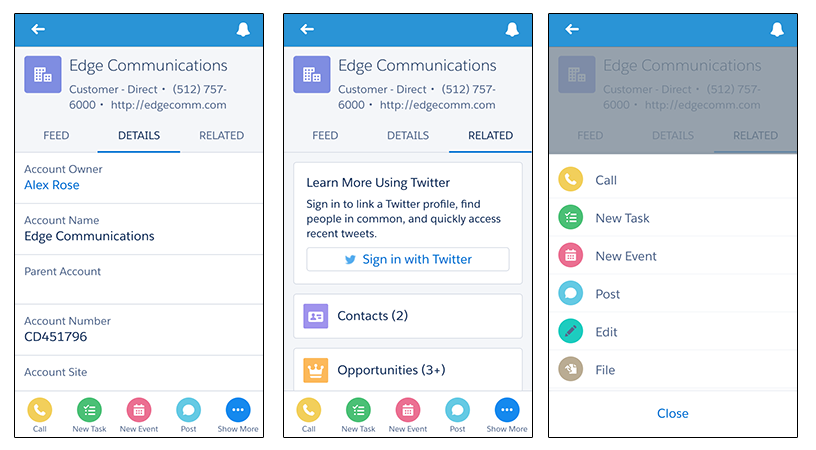
Here are the record detail page, related information page, and action menu for a sample account, Edge Communications: