


Salesforce App Admin Guide
 j
jCustomize the Navigation Menu
The  icon in the
header opens the navigation menu.
icon in the
header opens the navigation menu.
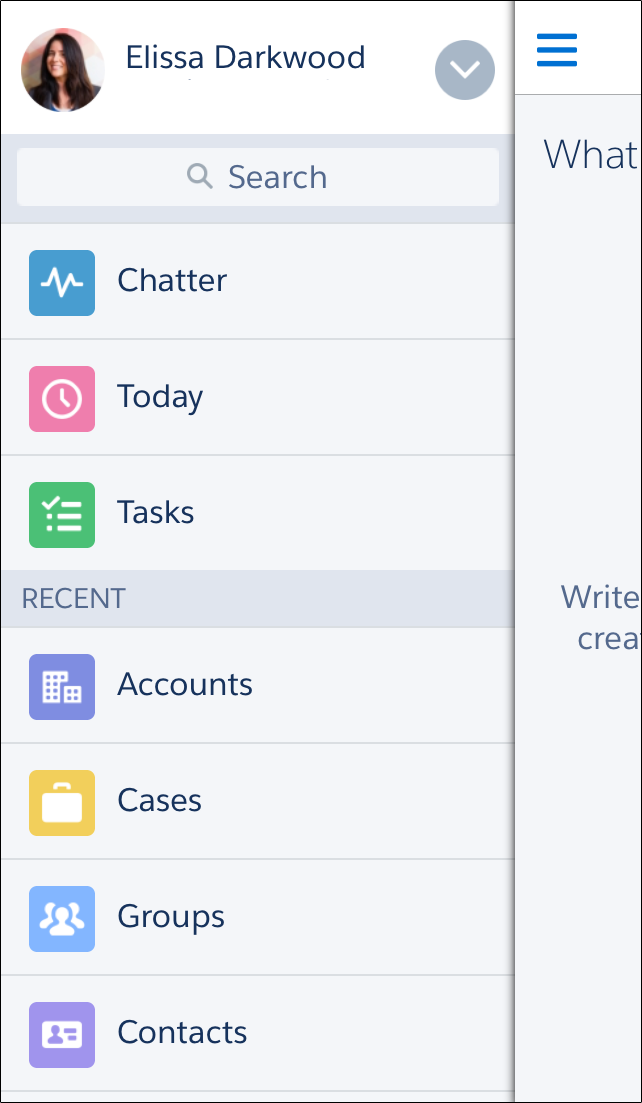
As an administrator, you can customize what the menu contains in Setup by entering Navigation menu in the Quick Find box, then selecting Navigation menu.
What You Can Include
Depending on how your organization is configured and what your users have access to, they might see some or all of these items in their navigation menu.
| Menu Item | Description |
|---|---|
| Approval Requests | Displays a list of the user’s pending approvals. Users can tap an approval item and approve or reject it from within Salesforce. Available in Salesforce for iOS and mobile web. |
| Canvas apps | Appears for organizations that have enabled a canvas app to appear in the navigation menu. |
| Chatter | The user’s main feed. Appears for organizations that have Chatter enabled. |
| Dashboards | Availability depends on edition and user permissions. If you don’t add this item to the navigation menu, dashboards are automatically included in the set of Smart Search Items instead and the Dashboards item is available from the Recent section. |
| Events | Lists events owned by the user, that the user created for him- or herself, and that the user or a user’s groups are invited to. If you don’t add this item to the navigation menu, events are automatically included in the set of Smart Search Items instead and the Events item is available from the Recent section. |
| Forecasts | Displays the Forecasts app, a helpful tool for every member of a sales team to keep track of forecast data and monitor progress towards quota. Available in the Salesforce for Android and Salesforce for iOS for iOS only. |
| Groups | Appears for organizations that have Chatter enabled. If you don’t add this item to the navigation menu, groups are automatically included in the set of Smart Search Items instead and the Groups item is available from the Recent section. |
| Lightning component tabs | Only custom Lightning components that have a Lightning component tab associated with them can appear in the navigation menu. |
| Lightning pages | Custom app pages. |
| News | Displays the News app, a one-stop place for news and other insights about the user’s accounts, contacts, leads, and opportunities. |
| Notes | Displays the Notes app. If you don’t add this item to the navigation menu, notes are automatically included in the set of Smart Search Items instead and the Notes item is available from the Recent section. |
| Paused Flow Interviews | Displays a list of flow interviews that the user paused. An interview is a running instance of a flow. Users can tap an interview and resume or delete it. Available in Salesforce mobile web only. |
| People | Appears for organizations that have Chatter enabled. If you don’t add this item to the navigation menu, profiles are automatically included in the set of Smart Search Items instead and the People item is available from the Recent section. |
| Reports | Availability depends on edition and user permissions. If you don’t add this item to the navigation menu, reports are automatically included in the set of Smart Search Items instead and the Reports item is available from the Recent section. |
| Smart Search Items | Adds standard and custom Salesforce objects to the Recent section in the menu. This item also adds a set of the user’s
recently accessed objects to the Recent section and adds the More item so users can
access all the objects they have permission to use and that are supported. If you
don’t include this item in the navigation menu, users can’t access any objects on the
navigation menu.
If your iOS downloadable app users don’t yet have a history of recent objects, they initially see a set of default objects in the Recent section. For Salesforce for Android and Salesforce mobile web, the default set of objects match the Lightning Experience Navigation Bar that the admin has configured in the Lightning App. If the user doesn’t have access or permissions to the Lightning App, they also see a default set of objects until the user’s most frequently used objects are determined. It can take up to 15 days for the objects that users work with regularly in both the Salesforce app and the full Salesforce site to appear in the Recent section. To make objects appear under Recent sooner, users can pin them from the search results screen in the full site. |
| Tasks | Lists of a user’s open and closed tasks and tasks that have been delegated. If you don’t add this item to the navigation menu, tasks are automatically included in the set of Smart Search Items instead and the Tasks item is available from the Recent section. |
| Today | An app that helps users plan for and manage their day by integrating mobile calendar events with associated Salesforce tasks, accounts, and contacts. The app also allows users to instantly join conference calls, quickly log notes about events, and more. Available in the Salesforce for Android and Salesforce for iOS only. |
| Visualforce page tabs | Only Visualforce pages with the Available for Lightning Experience, the Salesforce app, and Lightning Communities checkbox selected will display in the Salesforce app. |
We’ll touch briefly on Visualforce pages in a later chapter. To delve even deeper, see “Extending the Salesforce App with Visualforce Pages” in the Salesforce App Developer Guide.