


Use SAQL in the CRM Analytics Dashboard
Use the CRM Analytics Studio user interface to modify existing SAQL queries or write new ones. Writing SAQL queries in the user interface is the easiest way to get started.
Every component in CRM Analytics uses SAQL behind the scenes. You can build a widget in a dashboard, then switch to the SAQL view to see the SAQL query for the widget. Or, you can create a lens while exploring a dataset, then switch to the SAQL view to see the SAQL query for the lens.
Let’s look at the query generated by a widget in a dashboard.
After you edit the SAQL for a widget, you may not be able to go back to the dashboard view, depending on how complex the SAQL query is. For more information about working with SAQL queries, see Tips for Working with SAQL Queries in the Query Editor.
Note
-
In your Salesforce org, open CRM Analytics Studio, then open a dashboard. For example, open Opportunity Details.
-
Click Edit.
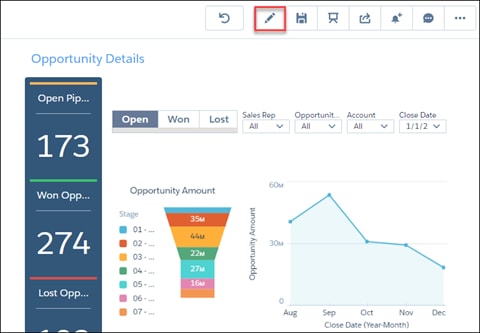
-
Click a query to edit, for example Amount_1, then click Edit in the dropdown list.
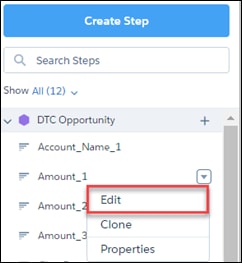
-
Click SAQL Mode to display the SAQL query.
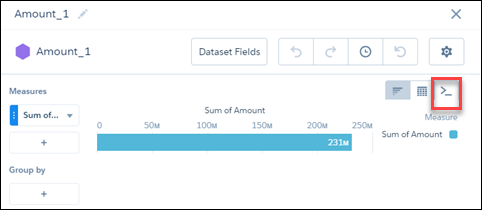
-
View the SAQL query.
Here is the SAQL query for our example:
1q = load "DTC_Opportunity_SAMPLE"; 2q = filter q by 'Closed' == "false"; 3q = group q by all; 4q = foreach q generate sum('Amount') as 'sum_Amount'; 5q = limit q 2000; -
Edit the query, then click Run Query to run the new query. For example, you could change the
sumtoaverage.
 j
j