


Salesforce App Admin Guide
 j
jAction Layouts
Just as object record pages have page layouts that can be
customized, actions have action layouts that can be customized. You can add, remove, or
reorder fields on the action layout to present only the essential items your users need when
they’re taking the action.
To customize the layouts of your global actions, in Setup, enter Actions in the Quick Find box, then select Global Actions. (If you’re in Salesforce Classic, click Publisher Layouts.) Then click Layout next to a global action in the list.
To customize the layouts of your object-specific actions, from the management settings for
an object, find Buttons, Links, and Actions.
- If you’re using Salesforce Classic, from Setup, enter an object name in the Quick Find box, select Buttons, Links, and Actions, and then click Layout next to an action in the list.
- If you’re using Lightning Experience, from Setup, at the top of the page, click Object Manager. Select and object from the list and then click Buttons, Links, and Actions. Click Edit next to the name of an action.
The first time you view the layout for an action you’ve created, certain fields are prepopulated: target object default fields, standard required fields, and any custom universally required fields.
Use the action layout editor to specify which fields to include in the layout.
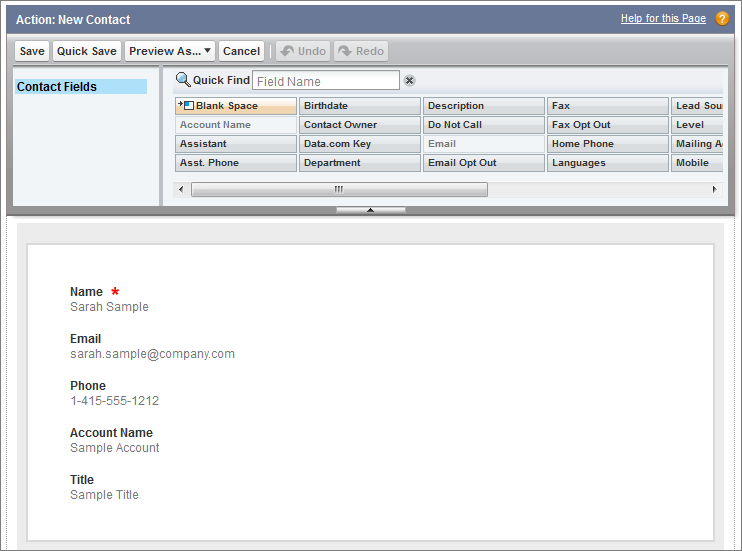
The upper part of the action layout editor is the
palette, and below the palette is the action layout. The palette contains fields from the
action’s target object that you can add to the action layout, except for the following
unsupported field types:
- Record type fields
- Read-only field types such as roll-up summary, formula, and auto-number fields
- Read-only system fields such as Created By or Last Modified By
- Inactive Fields
- Fields that are already on the action layout still appear on the palette but are inactive. When you select an inactive field on the palette, Salesforce highlights the field on the action layout.
- Field Type Conversion
- If you convert a field’s type from one that is supported for actions to a type that isn’t supported, Salesforce removes the field from the action layout. If you convert the field back to a supported type without changing the action layout, Salesforce automatically adds the field back to the layout. If you edit the layout, and then convert the field back to a supported type, add the field back to the layout manually.
- Layouts Used for Log a Call Actions
- A Log a Call action takes the active task page layout except under the following conditions:
- Suppose that your organization has a custom Log a Call action for an object. The custom action takes the custom action layout defined for it.
- Now suppose that your organization has a custom Log a Call global action. That action takes the custom layout defined for it, unless you also have a custom Log a Call action for an object. (A custom action on an object overrides a custom global action.)
- Layout Auditing
- Salesforce tracks action layout customization in the setup audit trail history.