


Lightning Flow for Service Developer Guide
 j
jNewer Version Available
Lightning Flow for Service Sample Use Case
Here’s an example of Lightning Flow for Service set up in the Service Console app. The flow
in the subtab helps agents create contact information for an incoming caller.
- The customer’s call is routed to the appropriate agent based on the loan type.
- An agent takes basic information about the customer, such as their name and phone number.
- An agent verifies the loan type that the customer is looking for. The agent follows a series of steps to process the loan application, including the required step of obtaining the customer’s credit score.
- When the loan application is processed successfully, the application enters the approval process.
- When the loan application is approved, the loan is sent for disbursement.
- An agent wraps up the loan application.
- Common steps that are applicable to all loan types
- Unique steps specific to the loan type
Cyrus wants an automated way of associating the flows dynamically to a record. Cyrus approaches Maria, the Service Admin who is in charge of handling and administering Salesforce applications for Awesome Bank. Cyrus hopes Maria can come up with a solution that improves the overall productivity of agents and give them more flexibility.
- A dynamic set of flows associated to a record so that agents can see all the flows to complete upfront
- An easy way for agents to search for and add more flows based on customer needs
- A way to see which flows have been started and completed on a record
- A reminder to complete flows that are required, like the credit score check
Sample Implementation Steps
- Create flows in Cloud Flow Designer.
- To handle unknown callers, Maria creates a flow called Create Contact that walks agents through creating a new contact.
- To walk agents through the initial steps for new customers that want a loan, she creates a flow called New Loan.
- To determine the customer’s credit score, she creates a flow called Check Credit Score.
- To let agents process the loan, she creates a flow called Process Loan.
- To walk agents through the wrap-up steps, she creates a flow called Wrap Up Loan.
- Update the Screen Pop Settings for the softphone layout in Setup (in Lightning
Experience).
To handle unknown callers, Maria updates the No Matching Records setting to pop to the unknown caller flow, Create Contact. This setting ensures that when an agent accepts a call from an unknown caller, they’re automatically presented with a flow to create a new contact record.
- Associate flows to records in Process Builder.
Maria creates a process that associates the flows New Loan, Check Credit Score, Process Loan, and Wrap Up Loan to the contact object using the RecordAction object. For the Check Credit Score flow, she assigns the Is Mandatory attribute so that agents see that this step is required.
- Edit Lightning console record pages.
To display a list of associated flows to agents, Maria adds the Guided Action List component to pages in the Service Console. She configures the component to show agents the flows defined in Step 1. In addition, by editing the Guided Action Settings, Maria configures a subset of flows that agents can add to the list as needed. At runtime, agents can click Add and select a flow from this subset.

Sample User Experience
The flows in the Guided Action List (1) give the loan agents at Awesome Bank a clear set of steps to follow when they speak to customers. If there’s a handoff between agents, an agent can use the History tab (2) to learn which steps in the loan process have been started and completed. If agents don’t see a step, they can click Add and add a different flow (3) to the list. And agents see an asterisk in the Guided Action List next to required flows (4).
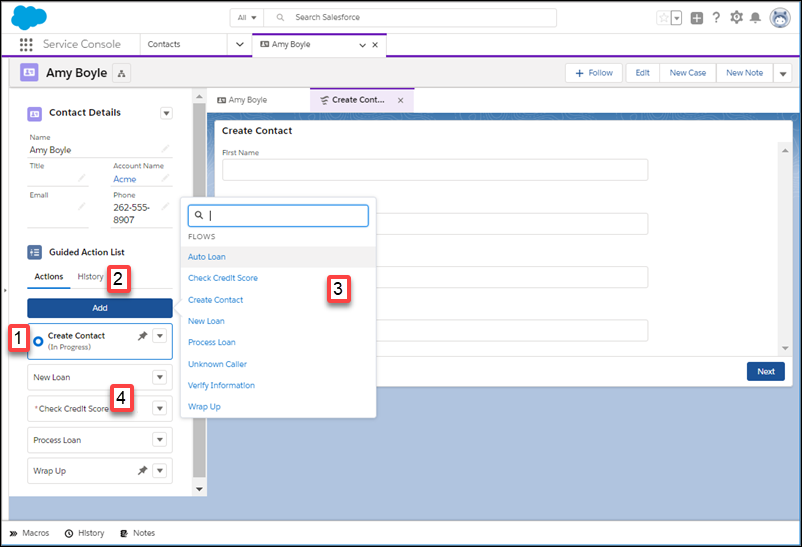
Cyrus, the Service Team Leader, likes that agents see a reminder when a step in the process is required, like the Check Credit Score step. Maria assigned the Is Mandatory attribute to that flow.
When an agent launches that flow and tries to close the tab before completing the step, a message reminds them that the action is required. Clicking Cancel dismisses the warning and continues the flow. Or, the agent can click Finish Later, which closes the tab or window. The agent can start a new instance of this flow later.
