Visualforce Developer Guide
 j
jNewer Version Available
Creating a Wizard
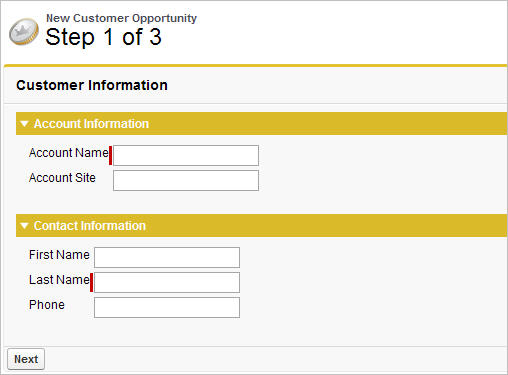
- The first step captures information related to the account and contact
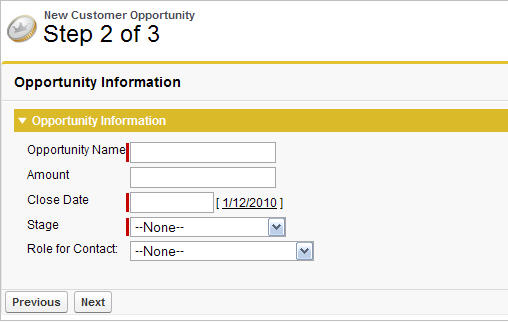
- The second step captures information related to the opportunity
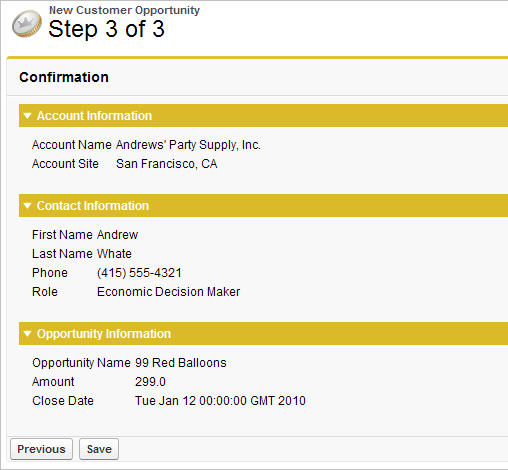
- The final step shows which records will be created and allows the user to save or cancel
The code for each of these components is included in the sections below, but first you need to understand the best procedure for creating them because each of the three pages references the controller, and the controller references each of the three pages. In what appears to be a conundrum, you cannot create the controller without the pages, but the pages have to exist to refer to them in the controller.
- Navigate to the URL for the first page, https://Salesforce_instance/apex/opptyStep1, and click Create Page opptyStep1.
- Repeat the step above for the other pages in the wizard, opptyStep2 and opptyStep3.
- Create the newOpportunityController controller by adding it as an attribute to the <apex:page> tag on one of your pages (for example, <apex:page controller="newOpportunityController">, and clicking Create Apex controller newOpportunityController. Paste in all of the controller code and click Save.
- Now return to the editors for the three pages that you created and copy in their code. The wizard should now work as expected.
The Opportunity Wizard Controller
The following Apex class is the controller for all three pages in the New Customer Opportunity wizard:
1public class newOpportunityController {
2
3   // These four member variables maintain the state of the wizard.
4   // When users enter data into the wizard, their input is stored
5   // in these variables.
6   Account account;
7   Contact contact;
8   Opportunity opportunity;
9   OpportunityContactRole role;
10
11
12   // The next four methods return one of each of the four member
13   // variables. If this is the first time the method is called,
14   // it creates an empty record for the variable.
15   public Account getAccount() {
16      if(account == null) account = new Account();
17      return account;
18   }
19
20   public Contact getContact() {
21      if(contact == null) contact = new Contact();
22      return contact;
23   }
24
25   public Opportunity getOpportunity() {
26      if(opportunity == null) opportunity = new Opportunity();
27      return opportunity;
28   }
29
30   public OpportunityContactRole getRole() {
31      if(role == null) role = new OpportunityContactRole();
32      return role;
33   }
34
35
36   // The next three methods control navigation through
37   // the wizard. Each returns a PageReference for one of the three pages
38   // in the wizard. Note that the redirect attribute does not need to
39   // be set on the PageReference because the URL does not need to change
40   // when users move from page to page.
41   public PageReference step1() {
42      return Page.opptyStep1;
43   }
44
45   public PageReference step2() {
46      return Page.opptyStep2;
47   }
48
49   public PageReference step3() {
50      return Page.opptyStep3;
51   }
52
53
54   // This method cancels the wizard, and returns the user to the
55   // Opportunities tab
56    public PageReference cancel() {
57			PageReference opportunityPage = new ApexPages.StandardController(opportunity).view();
58			opportunityPage.setRedirect(true);
59			return opportunityPage;
60    }
61
62   // This method performs the final save for all four objects, and
63   // then navigates the user to the detail page for the new
64   // opportunity.
65   public PageReference save() {
66
67      // Create the account. Before inserting, copy the contact's
68      // phone number into the account phone number field.
69      account.phone = contact.phone;
70      insert account;
71
72      // Create the contact. Before inserting, use the id field
73      // that's created once the account is inserted to create
74      // the relationship between the contact and the account.
75      contact.accountId = account.id;
76      insert contact;
77
78      // Create the opportunity. Before inserting, create
79      // another relationship with the account.
80      opportunity.accountId = account.id;
81      insert opportunity;
82
83      // Create the junction contact role between the opportunity
84      // and the contact.
85      role.opportunityId = opportunity.id;
86      role.contactId = contact.id;
87      insert role;
88
89      // Finally, send the user to the detail page for
90      // the new opportunity.
91
92
93      PageReference opptyPage = new ApexPages.StandardController(opportunity).view();
94      opptyPage.setRedirect(true);
95
96      return opptyPage;
97   }
98
99}
Step One of the Opportunity Wizard
The following code defines the first page of the wizard (opptyStep1) in which data about the associated contact and account is gathered from the user:
1<apex:page controller="newOpportunityController" tabStyle="Opportunity">
2  <script>
3  function confirmCancel() {
4      var isCancel = confirm("Are you sure you wish to cancel?");
5      if (isCancel) return true;
6
7     return false;
8  }
9  </script>
10  <apex:sectionHeader title="New Customer Opportunity" subtitle="Step 1 of 3"/>
11    <apex:form>
12      <apex:pageBlock title="Customer Information" mode="edit">
13
14        <!-- The pageBlockButtons tag defines the buttons that appear at the top
15             and bottom of the pageBlock. Like a facet, it can appear anywhere in
16             a pageBlock, but always defines the button areas.-->
17        <!-- The Next button contained in this pageBlockButtons area
18             calls the step2 controller method, which returns a pageReference to
19             the next step of the wizard. -->
20        <apex:pageBlockButtons>
21          <apex:commandButton action="{!step2}" value="Next"/>
22          <apex:commandButton action="{!cancel}" value="Cancel"
23                              onclick="return confirmCancel()" immediate="true"/>
24        </apex:pageBlockButtons>
25      <apex:pageBlockSection title="Account Information">
26
27        <!-- Within a pageBlockSection, inputFields always display with their
28             corresponding output label. -->
29        <apex:inputField id="accountName" value="{!account.name}"/>
30        <apex:inputField id="accountSite" value="{!account.site}"/>
31      </apex:pageBlockSection>
32      <apex:pageBlockSection title="Contact Information">
33        <apex:inputField id="contactFirstName" value="{!contact.firstName}"/>
34        <apex:inputField id="contactLastName" value="{!contact.lastName}"/>
35        <apex:inputField id="contactPhone" value="{!contact.phone}"/>
36      </apex:pageBlockSection>
37    </apex:pageBlock>
38  </apex:form>
39</apex:page>- The <apex:pageBlock> tag can take an optional <apex:pageBlockButtons> child element that controls the buttons that appear in the header and footer of the component. The order in which the <apex:pageBlockButtons> tag appears in the <apex:pageBlock> body does not matter. In this page of the wizard, the <apex:pageBlockButtons> tag includes the Next button that appears in the footer of the page block area.
- The wizard relies on JavaScript code to display a dialog box asking if a user wants to navigate away when clicking the Cancel button. Although the example includes the JavaScript directly in the markup for simplicity, it is a better practice to put JavaScript code in a static resource and reference that resource instead.
- In this page of the wizard, the Next button calls the step2 method in the controller, which returns a
PageReference to the next step of the wizard:
1<apex:pageBlockButtons>
2    <apex:commandButton action="{!step2}" value="Next"/>
3</apex:pageBlockButtons>
Command buttons must appear in a form, because the form component itself is responsible for refreshing the page display based on the new PageReference.
- An <apex:pageBlockSection> tag organizes a
set of data for display. Similar to a table, an <apex:pageBlockSection> consists of one or more columns, each of which
spans two cells—one for a field's label, and one for its value. Each component
found in the body of an <apex:pageBlockSection> tag is placed into the next cell in a row until
the number of columns is reached. At that point, the next component wraps to the next
row and is placed in the first cell.
Some components, including <apex:inputField>, automatically span both cells of a page block section column at once, filling in both a field's label and value. For example, in the Contact Information area of this page, the First Name field is in the first column, the Last Name field is in the second column, and the Phone field wraps to the first column of the next row:
1<apex:pageBlockSection title="Contact Information"> 2 <apex:inputField id="contactFirstName" value="{!contact.firstName}"/> 3 <apex:inputField id="contactLastName" value="{!contact.lastName}"/> 4 <apex:inputField id="contactPhone" value="{!contact.phone}"/> 5</apex:pageBlockSection> - The value attribute on the first <apex:inputField> tag in the preceding code excerpt assigns the user's input to the firstName field of the contact record that's returned by the getContact method in the controller.
Step Two of the Opportunity Wizard
The following code defines the second page of the wizard (opptyStep2) in which data about the opportunity is gathered from the user:
1<apex:page controller="newOpportunityController" tabStyle="Opportunity">
2  <script>
3  function confirmCancel() {
4      var isCancel = confirm("Are you sure you wish to cancel?");
5      if (isCancel) return true;
6
7     return false;
8  }
9  </script>
10  <apex:sectionHeader title="New Customer Opportunity" subtitle="Step 2 of 3"/>
11  <apex:form>
12    <apex:pageBlock title="Opportunity Information" mode="edit">
13      <apex:pageBlockButtons>
14        <apex:commandButton action="{!step1}" value="Previous"/>
15        <apex:commandButton action="{!step3}" value="Next"/>
16        <apex:commandButton action="{!cancel}" value="Cancel"
17                            onclick="return confirmCancel()" immediate="true"/>
18      </apex:pageBlockButtons>
19      <apex:pageBlockSection title="Opportunity Information">
20        <apex:inputField id="opportunityName" value="{!opportunity.name}"/>
21        <apex:inputField id="opportunityAmount" value="{!opportunity.amount}"/>
22        <apex:inputField id="opportunityCloseDate" value="{!opportunity.closeDate}"/>
23        <apex:inputField id="opportunityStageName" value="{!opportunity.stageName}"/>
24        <apex:inputField id="contactRole" value="{!role.role}"/>
25      </apex:pageBlockSection>
26    </apex:pageBlock>
27  </apex:form>
28</apex:page>
Notice that although the markup for placing the Close Date, Stage, and Role for Contact fields on the form is the same as the other fields, the <apex:inputField> tag examines the data type of each field to determine how to display it. For example, clicking in the Close Date text box brings up a calendar from which users can select the date.
Step Three of the Opportunity Wizard
The last block of code defines the third page of the wizard (opptyStep3) in which all inputted data is displayed. The user can decide to save the operation or return to the previous step:
1<apex:page controller="newOpportunityController" tabStyle="Opportunity">
2  <script>
3  function confirmCancel() {
4      var isCancel = confirm("Are you sure you wish to cancel?");
5      if (isCancel) return true;
6
7     return false;
8  }
9  </script>
10  <apex:sectionHeader title="New Customer Opportunity" subtitle="Step 3 of 3"/>
11  <apex:form>
12    <apex:pageBlock title="Confirmation">
13      <apex:pageBlockButtons>
14          <apex:commandButton action="{!step2}" value="Previous"/>
15          <apex:commandButton action="{!save}" value="Save"/>
16          <apex:commandButton action="{!cancel}" value="Cancel"
17                              onclick="return confirmCancel()" immediate="true"/>
18      </apex:pageBlockButtons>
19      <apex:pageBlockSection title="Account Information">
20        <apex:outputField value="{!account.name}"/>
21        <apex:outputField value="{!account.site}"/>
22      </apex:pageBlockSection>
23      <apex:pageBlockSection title="Contact Information">
24        <apex:outputField value="{!contact.firstName}"/>
25        <apex:outputField value="{!contact.lastName}"/>
26        <apex:outputField value="{!contact.phone}"/>
27        <apex:outputField value="{!role.role}"/>
28      </apex:pageBlockSection>
29      <apex:pageBlockSection title="Opportunity Information">
30        <apex:outputField value="{!opportunity.name}"/>
31        <apex:outputField value="{!opportunity.amount}"/>
32        <apex:outputField value="{!opportunity.closeDate}"/>
33      </apex:pageBlockSection>
34    </apex:pageBlock>
35  </apex:form>
36</apex:page>
Notice that the third page of the wizard simply writes text to the page with <apex:outputField> tags.