


Salesforce Console Developer Guide
 j
jNewer Version Available
Get to Know the Utility Bar
The utility bar API includes a set of methods for working with utilities and the utility
bar.
A utility is broadly defined as a single-column Lightning page. Salesforce provides you with several ready-to-use utilities, such as Recent Items, History, and Notes. You can also make your own, and customize the utility bar in Setup. From Setup, enter App Manager in the Quick Find box, then select App Manager. Either click New Lightning App to create an app, or click Edit next to an existing Lightning app to add a utility bar or edit the existing one.
To add a utility bar, add at least one utility item that isn’t a background utility item. To remove a utility bar, remove all non-background utility items from your app.
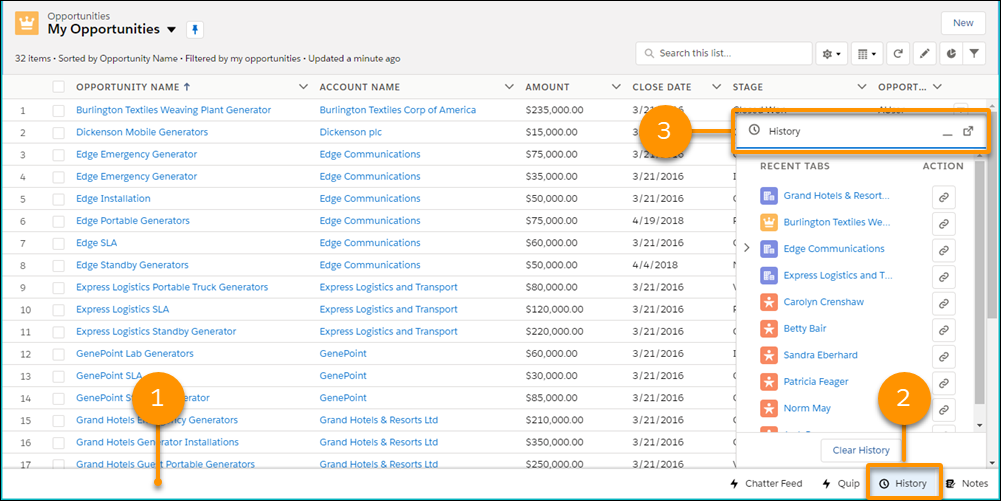
- The utility bar. This utility bar includes four utilities: Chatter Feed, Quip, History, and Notes. Each utility has an icon and label.
- The selected utility.The selected utility opens in a panel
- The panel header, showing the panel icon and label