


Visualforce Developer Guide
 j
jNewer Version Available
Bar Charts
Each data element in a linear series is described by an X,Y coordinate. The data series defines how to draw the coordinate on the grid. The <apex:barSeries> charts draw bars stretching between an origin axis and the X,Y coordinates. The orientation attribute determines whether the origin axis is the left axis (Y) or the bottom axis (X). Set <apex:barSeries orientation="horizontal"> for bars that originate on the left side of the chart, and <apex:barSeries orientation="vertical"> for a column chart with bars that rise from the bottom of the chart.
1<apex:barSeries orientation="vertical" axis="left"
2    xField="name" yField="data1,data2,data3"/>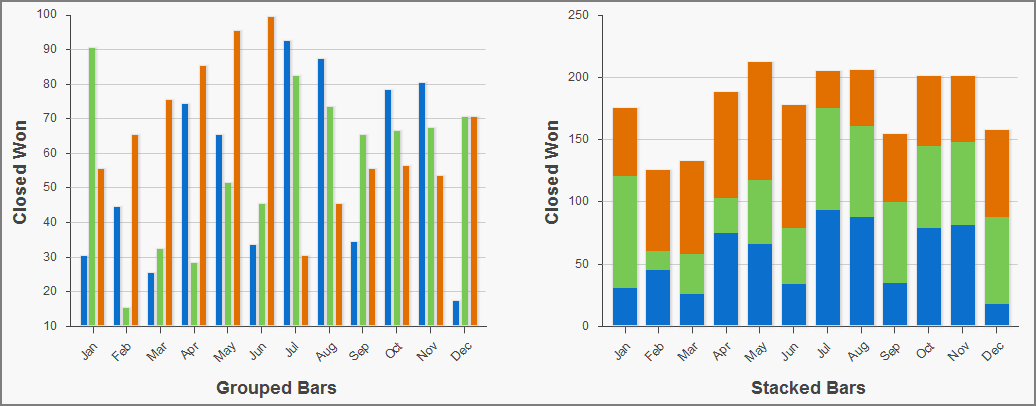
Use the gutter attribute to adjust spacing between grouped bars. Use the groupGutter attribute to adjust spacing between groups. Use the xPadding and yPadding attributes to adjust the spacing between the chart axes and the bars themselves.
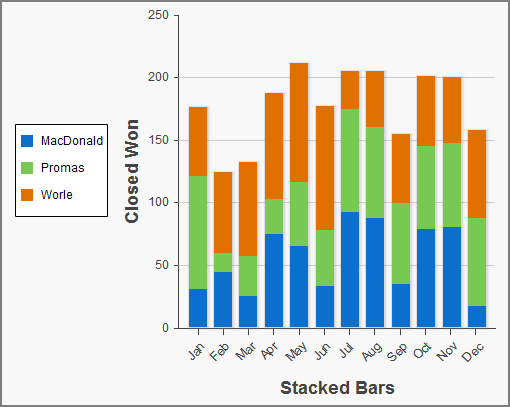
1<apex:chart data="{!data}" height="400" width="500">
2    <apex:legend position="left"/>
3    <apex:axis type="Numeric" position="left" title="Closed Won" grid="true"
4        fields="data1,data2,data3" dashSize="2">
5        <apex:chartLabel/>
6    </apex:axis>
7    <apex:axis type="Category" position="bottom" fields="name" title="Stacked Bars">
8        <apex:chartLabel rotate="315"/>
9    </apex:axis>
10    <apex:barSeries orientation="vertical" axis="left" stacked="true"
11        xField="name" yField="data1,data2,data3" title="MacDonald,Promas,Worle"/>
12</apex:chart>