Streaming API Developer Guide
 j
jNewer Version Available
Durable PushTopic Streaming Sample
The Durable PushTopic Streaming Visualforce sample shows you how to use replay
options to subscribe and receive durable PushTopic event notifications.
Use a Visualforce Page to Generate and Replay PushTopic Events
In this step, you use a Visualforce page to generate your own
PushTopic streaming events and replay those events by using different options.
When the Visualforce page is
loaded, it creates a PushTopic for the Account object. The page also subscribes to this
topic to receive notifications for account creations, updates, and deletions, with an
option to replay events. You can specify the name of the account to create, update, and
delete on the Visualforce page.
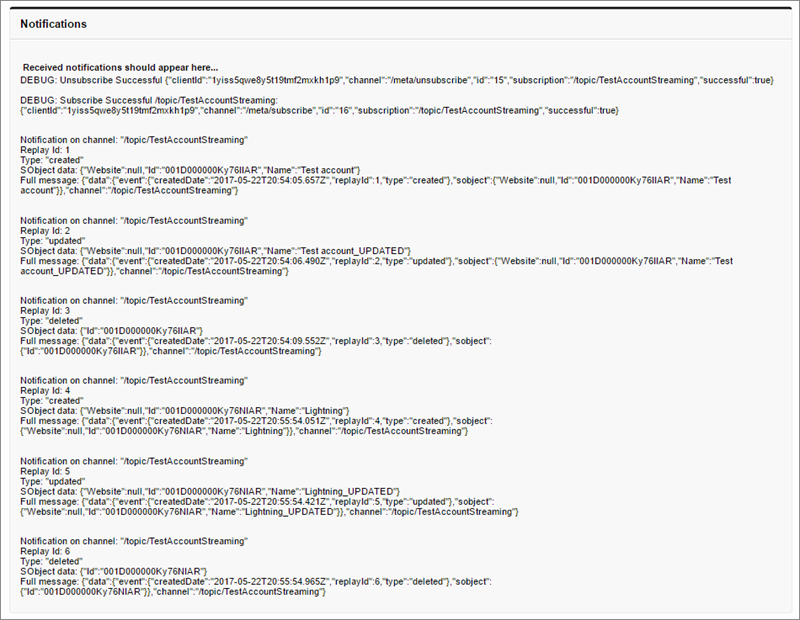
These operations generate event notifications, which are displayed in the Notifications
section. You can control which events are received and displayed by subscribing with
replay options. After generating events, you can replay events starting from:
- All events after a particular event specified by a replay ID.
- The first event broadcast right after subscribing (replay option -1).
- The earliest retained event in your org that’s less than 24 hours old (replay option -2). The sample uses replay option -2 as the default option.
This Visualforce sample is part of the Durable Streaming Demo app.
- Open the Durable Streaming Demo app.
-
Click the Durable PushTopic Streaming Demo tab.
The Visualforce page loads and subscribes to the PushTopic it created for the Account object.
- On the Visualforce page, generate some events for an account. For example, Test account.
-
Click Create, Update, Delete New Account.
-
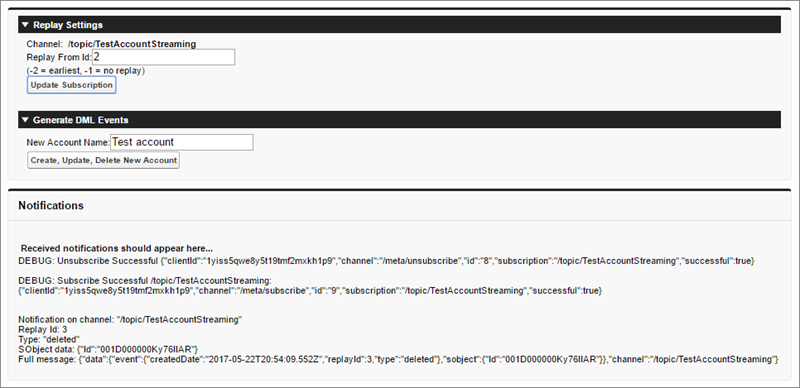
To change the point in time when events are read, enter the replay ID to read
from in the Replay From Id field. For example, to read
all events after the event with replay ID 2, enter 2.
Then click Update Subscription.
The Notifications section is updated and shows only the last event with replay ID 3.
-
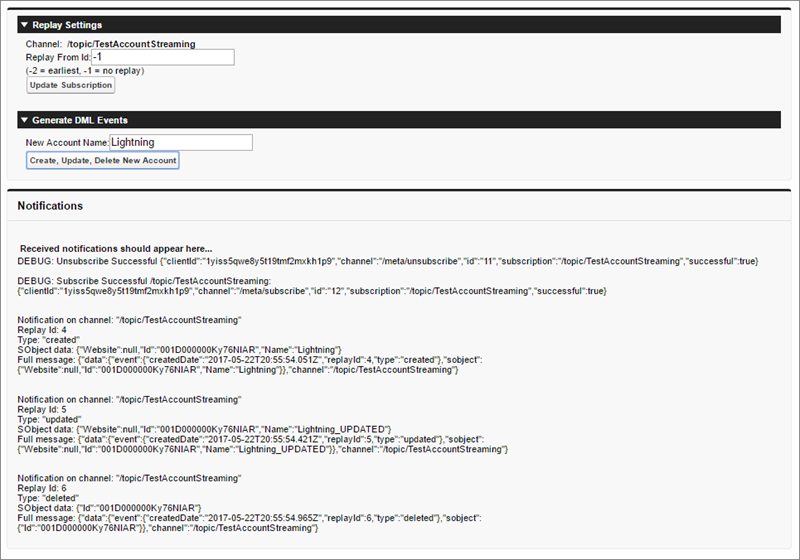
To receive only the events that are sent after you subscribe, enter
-1 in the Replay From ID
field. Then click Update Subscription.
The Notifications section is cleared, because only new events from this point on are shown.
-
Generate some new events like you did previously using
Lightning for the account name.
The Notifications section is updated with the new events and doesn’t show the old events.
-
Switch the replay option back to -2.
The page displays all events, including events that were sent earlier.