


 j
jTell Me More: Where Visualforce Pages Can Appear in the Salesforce Mobile App
Previous Versions
When you create a Visualforce page, you can make it available from a number of places in the user interface.
The default navigation menu, called Mobile Only—available when you tap  in the navigation bar at the bottom of the screen
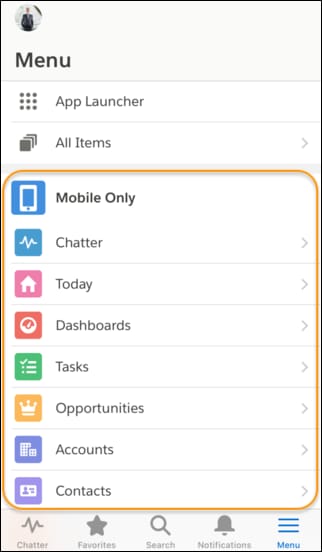
Action bar and action menu—available from the top of any page that supports actions
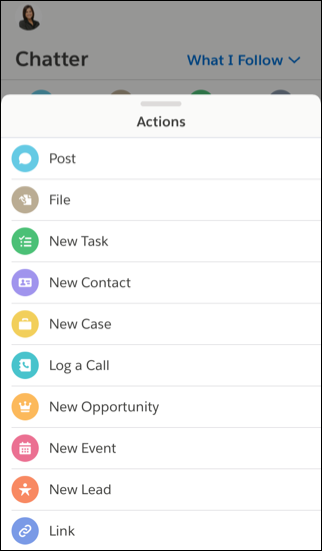
You can also reference, and link to, another Visualforce page in your Visualforce markup using the supported navigation calls listed at Navigation with the sforce.one Object. Be sure to select Available for Lightning Experience, Experience Builder sites, and the mobile app for all pages in a multi-page process.
If a referenced page doesn’t have Available for Lightning Experience, Experience Builder sites, and the mobile app selected, it doesn’t prevent the referencing, or parent, page from appearing. However, when a user tries to access the non-mobile enabled page, they receive an “Unsupported Page” error message.
j