


Analytics Extended Metadata (XMD) Reference
 j
jNewer Version Available
XMD 1.1 Reference
Formats Section
You specify the format and multiplier for measures in the formats section of the XMD file. This example specifies a format string and a multiplier of 1 for the Amount measure.
1"formats": {
2  "measures": {
3    "Amount": [
4      "$#,##0.00",
5      1
6    ]
7  }
8}
You can also specify a custom format in a measures section.
1{
2  "field": "Epic_Rank__c",
3  "format": {
4    "customFormat": "[\"\",1]",
5    "decimalDigits": 0
6  },
7  "label": "Epic Rank"
8}
Labels Section
- Dimension: Maps the dimension API name to a display label.
- Measure: Maps the measure API name to a display label.
- Measure filter: Specifies display labels to be used when the dashboard is showing a range for a measure. To use a shorter name than the one that is defined in the measures section, set the measure filter.
- Key: Specifies display labels for dimension keys.
The following example shows code for mapping API names to display labels used in the user interface.
1"labels": {
2        "dimensions": {
3            "OpportunityId": "Opportunity Id",
4            "*": "Opportunities",
5            "StageName": "Opportunity Stage"
6        },
7        "measures": {
8            "Amount": "Total Amount"
9        },
10        "keys": {
11            "IsClosed": {
12                "true": "Closed",
13                "false": "Open"
14            },
15            "Outcome": {
16                "true": "Won",
17                "false": "Lost"
18            },
19            "Region": {
20                "EU": "Europe",
21                "AP": "AsiaPacific",
22                "US": "UnitedStates"
23            }
24        }
25 }Types Section
The types section of the extended metadata file allows you to group dimensions into composite types that are treated as a single dimension in the user interface. The following example shows code for creating a type that’s called “Close Date GMT” and groups date dimensions and measures.
1"types": {
2        "Close Date GMT": {
3            "dims": {
4                "day": "CloseDate_Day",
5                "fullField": "CloseDate",
6                "month": "CloseDate_Month",
7                "quarter": "CloseDate_Quarter",
8                "week": "CloseDate_Week",
9                "year": "CloseDate_Year"
10            },
11            "meas": {
12                "epoch_day": "CloseDate_day_epoch",
13                "epoch_second": "CloseDate_sec_epoch"
14            },
15            "type": "date"
16        }
17}
Colors Section
The colors section of the extended metadata file allows you to set custom colors for charts. The following example shows code for setting the colors for particular StageName and Region values.
1"colors": {
2        "StageName": {
3            "5 - Closed-Won": "#4f4",
4            "5 - Closed-Lost": "#f44"
5        },
6        "Region": {
7            "AP": "#fc6",
8            "EU": "#48f",
9            "US": "#f88"
10        }
11    }
Values Query Columns Section
The values_query_columns section of the extended metadata file allows you to specify a list of default columns to be displayed for a values table.
1"values_query_columns": [
2        "Id",
3        "OpportunityId",
4        "StageName"
5    ]
Hide Dimensions and Measures Section
The hide_dimensions and hide_measures sections allow you to provide lists of dimensions and measures to be hidden in the user interface.
1"hide_dimensions": [
2        "Owner-Email"
3    ],
4    "hide_measures": [
5        "TotalMRR"
6    ]
Dimensions Section
Add a dimensions section to an XMD file to create custom quick action menus. These menus enable users to do the following from any dimension value in a table or chart within an Analytics lens or dashboard:
- Take advantage of actions on Salesforce objects. The current Dimensions implementation supports Account, Cases, Lead, and Opportunity Salesforce objects and so-called create actions. See “Quick Actions Menu Support for Objects and Actions” in Enable Quick Actions and Links to Salesforce and External Records With Custom Menus in Salesforce Help for a complete list of support for Salesforce objects and actions.
- Access records from Salesforce or any website that uses HTTP or HTTPS protocols
Add the dimensions section to the highest level of the XMD file (at the same level as the labels and types sections).
Through the XMD file dimensions section, you can specify if the menu includes all or a subset of actions and a link to a record in Salesforce or an external website.
- Add a Menu With Actions and a Link
-
The following shows a dimensions section that adds a menu with all available create actions and a link to a record.
1{
2        "dimensions": [
3              {
4               "field": "Name",
5               "recordIdField": "Id"
6              }
7         ]
8}
In the previous example, "field" is the name of the dimension that the menu appears on in dashboard and lens charts and tables. Setting "recordIdField" enables the create actions and a link in the menu that opens a record. The link uses the current Salesforce org instance and the dimension (in the example "Id") specified in the "recordIdField".
You can specify "linkTemplate" to override the default link, which is "/{{row.recordIdField}}". (For more detail about "recordIdField", see “Adding a Link to a Salesforce Record to a Menu,” below). Here’s an example showing a link to a record in Google and an optional tooltip:
1"field": "AccountId",
2     "linkTemplate":
3         "http://www.google.com/?q=AccountID={{row.AccountId}}
4          &AccountName={{row.AccountId.Name}}",
5     "recordIdField": "AccountId.Name",
6     "linkTooltip": "Custom AccountId Tooltip for Google"
Other options include the following:
- "linkTemplateEnabled": Defaults to true to set the link to the Salesforce or external record. If set to false, the menu does not display the open record link option.
- "salesforceActionsEnabled": Defaults to true to enable and display actions in the menu. If set to false, the menu does not display actions.
- "salesforceActions": Use to include only specific actions on a dimension. The actions specified by "salesforceActions" must be available for the record as determined when you set up actions in Salesforce using the action publisher. For example, the following includes the New Account and New Lead actions, where "name" references the API name of the action within the action publisher:
1"salesforceActions": [
2        {
3            "name": "APIname"
4        },
5        {
6             "name": "APIname"
7        }
8    ]
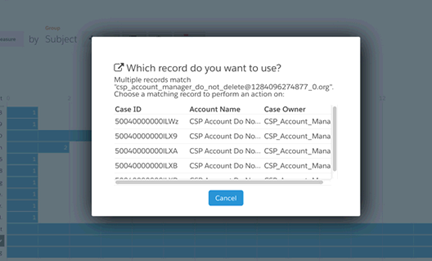
In some instances, a dimension value is associated with multiple IDs and is not unique. For example, an opportunity with the name “acme” has multiple opportunity IDs (and records). But the action or link can only be directed to one record. In this scenario, the user is given a choice of associated records in a modal. Here’s an example showing "recordDisplayFields":
1"field": "AccountId.Name",
2           "recordIdField": "AccountId.Id"
3           "recordDisplayFields": ["Case_ID","Account_Name","Case_Owner"]
This image shows the result of setting "recordDisplayFields" from the previous example:
The following combines the above, showing a complete XMD file for a dataset that includes quick action menus on several fields:
1{ 2 "dimensions": [ 3 { 4 "field": "Name", 5 "recordIdField": "Id" 6 }, 7 { 8 "field": "AccountId.Name", 9 "recordIdField": "AccountId.Id", 10 "linkTooltip": "Custom AccountName Tooltip" 11 "recordDisplayFields": ["Name","Owner"] 12 }, 13 { 14 "field": "Case_Subject", 15 "linkTemplate": 16 "http://www.google.com/?q=AccountID={{row.Case_Id}}&AccountName={{row.Case_Owner}}", 17 "recordIdField": "Case_Id", 18 "linkTooltip": "Custom CaseId Tooltip for google" 19 }, 20 { 21 "field": "Id", 22 "salesforceActions": [ 23 { 24 "name": "NewAccount" 25 }, 26 { 27 "name": "NewLead" 28 } 29 ], 30 "recordIdField": "Id", 31 "salesforceActionsEnabled": true, 32 "linkTemplateEnabled": false, 33 "linkTooltip": "Custom Tooltip for Opp Id" 34 } 35 ] 36} - Add an Open Record Link to a Menu
-
If your XMD file has no other specifications, the dimension section for adding an open record link to the menu looks like the following:
1{
2     "dimensions": [
3           {
4                "field": "dimensionName",
5                "linkTemplate": "/{{row.dimensionNameId}}",
6                "linkTooltip": "Custom Tooltip Text"   //optional
7           }
8     ]
9}s
In the previous example, "field" is the name of the dimension that the link appears on in dashboard and lens charts and tables. "LinkTemplate" is the destination of the link. "linkTooltip" is optional and can contain text that appears when a cursor hovers over the link.
- Add a Link to a Salesforce Record to a Menu
-
To link to a Salesforce record within the current organization instance, configure "LinkTemplate" as follows:
1"linkTemplate": "/{{row.Id}}"In the example, / sets the link’s destination to your Salesforce organization and {{row.Id}} is the record to link to. Id is the dimension that’s looked up in Salesforce. So specify a dimension that exists in the dataset and that returns results when queried in Salesforce, such as an ID or case number.
The chart or table would contain a link from an account name (such as Acme). If the Salesforce account ID for Acme is 0011a0000040KEz on an instance of Salesforce located at https://yourInstance.salesforce.com, the URL generated when the user clicks Acme is https://yourInstance.salesforce.com/0011a0000040KEz.
- Add a Link to an External Website to a Menu
-
To link to an external website and pass information such as a username to the linked website, configure "LinkTemplate" like the following:
1"linkTemplate": "https://www.ExternalWebsite.com/users/{{row.username}}"In this example, {{row.username}} passes a username through the URL of an external website. For example, if the username is dsmith, the URL generated by clicking dsmith is https://www.ExternalWebsite.com/users/dsmith. "LinkTemplate" must specify "http://{{row.websiteURL}}" or "https://{{row.websiteURL}}" for the link to work.
Here are some additional examples of adding open record links to menus, each showing variations on the above:
1"dimensions": [
2    {
3       "field": "Name",
4       "linkTemplate": "/{{row.opportunityid}}",
5       "linkTooltip": "Custom AccountName Tooltip"
6    },
7    {
8       "field": "AccountName",
9       "linkTemplate": "https://yourInstance.salesforce.com/{{row.AccountId}}"
10    },
11    {
12       "field": "StageName",
13       "linkTemplate":
14           "http://www.google.com?q={{row.StageName}}"
15    } ]
As the last example shows, you can specify any static URL in the XMD file. However, the URL must start with http:// or https://. You can use the {{row.}} notation to insert a dynamic value.
Organizations Section
For datasets that combine records from multiple Salesforce org instances, specifying an organizations section in the XMD file makes it possible to construct a link to a specific record in the correct org instance.
Add the organizations section to the highest level of the XMD file (at the same level as the dimensions section). For a given dimension, add a "linkTemplate" to create a link to a Salesforce record as described in “Adding a Link to a Salesforce Record to a Menu” in Dimensions Section within this guide. Along with "linkTemplate", you use "recordOrganizationIdField" to indicate that "linkTemplate" looks for the OrgId dimension in the dataset in which you define the menu.
With "recordOrganizationIdField" set, "linkTemplate" knows to look for an organizations section in the XMD. In the organizations section of the XMD file, you map between orgIds and instance URLs for each Salesforce org instance referred to by records in the dataset.
The result is that when a user clicks such a link, the mapping in the organizations section makes sure that the link resolves to the correct URL for the record.
Here’s an example organizations section. Note that each organization Id uses the 18 character format.
1"organizations": [
2     {
3        "id": "001i000001AWbWuGTA"
4        "instanceUrl": "https://yourInstance1.salesforce.com",
5        "label": ""
6     },
7     {
8        "id": "00330000000xEftMGH"
9        "instanceUrl": "https://yourInstance2.salesforce.com",
10        "label":""
11     }
12]
13
14"dimensions": [
15     "field": "AccountName"
16     "recordOrganizationIdField": "orgId",
17     "linkTemplate": "{{instanceUrl}}/{{row.Id}}"
18...
19.