


Lightning Communities Developer Guide
 j
jNewer Version Available
Add CMS Connect (JSON) Components to Your Community Pages
Before you can add JSON components to your community pages, set up connections to your JSON CMS content. The connection defines the content lists and content items to display. It also specifies the path to your content.
After you set up the connection, you’re ready to configure how the content appears on your community pages.
- In Setup, enter All Communities in the Quick Find box, then select All Communities.
- Next to the community name where you want to add CMS content, click Builder.
- Click
 to open the
Component panel.
to open the
Component panel. - Drag a CMS Connect (JSON) component to where you want to display it on the page.
- In the component’s property editor, configure component properties.
Example
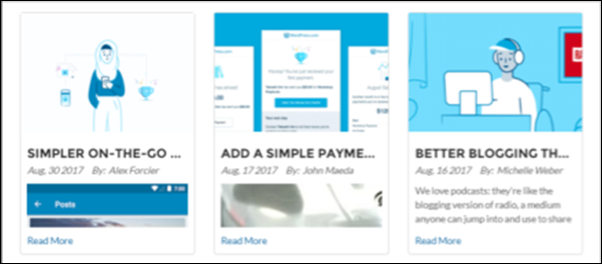
- In the property editor, select the CMS source you defined as a connection. Select a
content list as your JSON content.

- Define the grid layout for your list.

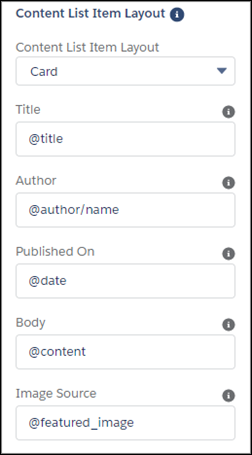
- To configure the layout of each list item, enter JSON expressions in that
section.
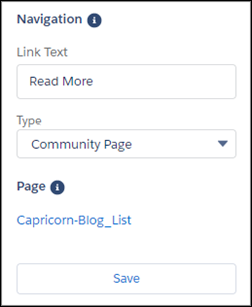
- Configure how you display each blog item, either through a community page or an external
link.
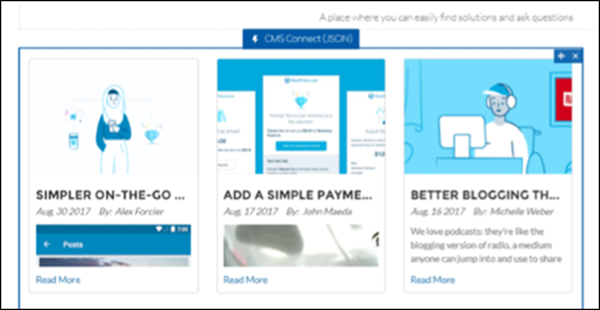
After you save the settings, you see a preview of the content in the page area.
Detail Page
Notice the Read More link for each item? After you publish your changes, you can click a link under a blog item in the series. When you click the link, you see an external page or a community page that’s created dynamically for each content item in your content list. To change the name or URL of this detail page, locate the page in the Pages menu in the top toolbar, and modify its properties. For search engine optimization (SEO), detail page URLs are added to the sitemap files.
For each content type name, only one detail page is created. If you create more than one content list under the same content type name, you see the same detail page.