


ISVforce Guide
 j
jNewer Version Available
Troubleshoot AppExchange Leads
Custom Lead Routing Rules
Typically, you set up custom lead routing rules to prevent duplicate or unwanted leads from reaching your sales team.
For example, an employee at your company watches your AppExchange listing’s demo video. When prompted for contact information, they enter a company email address. AppExchange records this interaction as a lead. From a sales perspective, it’s an unwanted lead.
You create a routing rule that prevents leads from users with your company’s email address from propagating to your Salesforce org.
Customer Contact Preferences
Customer can choose to share their contact info with, and allow contact from, AppExchange providers. AppExchange sends only leads to your Salesforce org for customers who allow provider contact.
Web-to-Lead reCaptcha
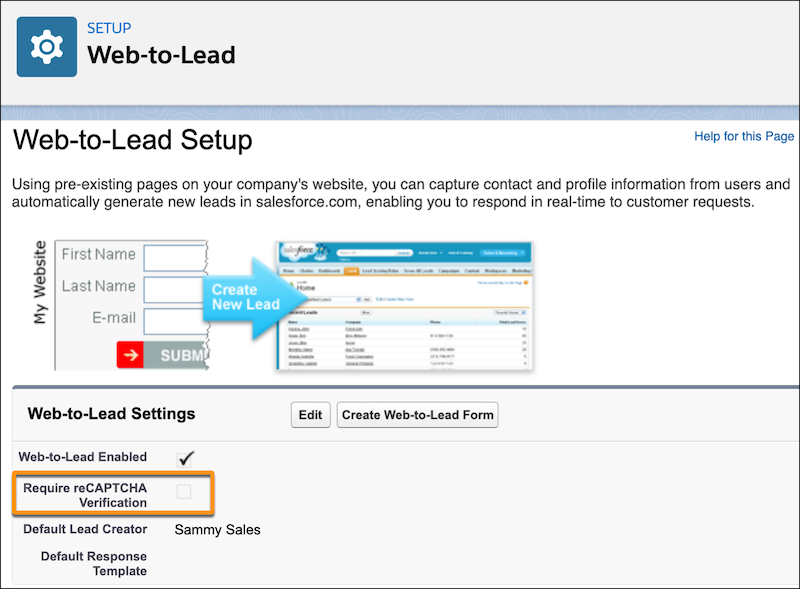
To receive AppExchange leads in your Salesforce org, disable Require reCaptcha Verification in your org’s Web-to-Lead settings. If reCaptcha is enabled, AppExchange leads aren’t sent to your org.
State and Country Picklists
AppExchange sends leads to your org via Web-to-Lead. Users provide contact info for the lead by completing the AppExchange Web-to-Lead form. They’re required to select a country from a picklist. The selected country is saved as a text value. For example, a user selects Japan. The saved value is the full name of the country, Japan. The AppExchange lead is sent to your org with country set to Japan.
In orgs with state and country picklists enabled, you optionally can populate these picklists with predefined, standard state and country lists that Salesforce provides. You can also edit country names and integration values, also know as developer names.
The Web-to-Lead form uses the integration values from the state and country picklists. For AppExchange lead creation to succeed, the integration value for a country in your org must match the value captured on the AppExchange Web-to-Lead form. In our example, they must both be Japan.
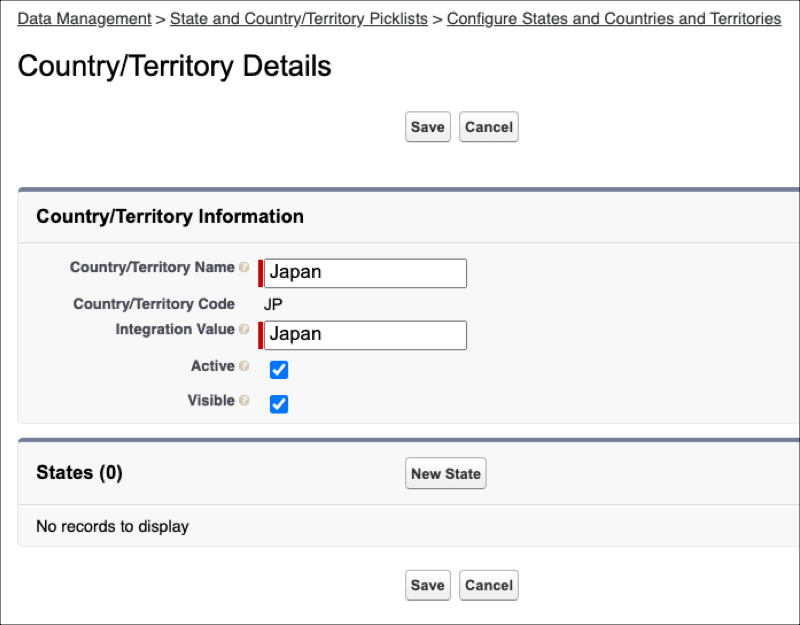
Changing country names doesn’t affect AppExchange lead creation, but changing integration values does. Don’t change integration values. The country sent in an AppExchange lead must match an integration value in your org. If there’s no match, lead creation fails. The same issue occurs with state picklists.
- Use Standard Picklist Integration Values
-
To implement this option, use the Salesforce standard state and country picklists in your org, and leave the integration values as-is. We recommend this option for most partners.
With this option, AppExchange leads propagate to your org with full state and country names. The names match integration values in the standard picklists.
- Add Duplicate States and Countries to Your Picklists
-
Implement this option if you require two-letter state or country abbreviations in your org. For example, you show abbreviations in the user interface, or use them to integrate with other systems.
Add duplicate states and countries to your picklists with different integration values. Set one value to the two-letter state or country abbreviation. Set the other value to the full state or country name. Make only the two-letter abbreviation picklist entries visible.
With this option, AppExchange leads propagate to your org with full state and country names, which match the full name integration values in your org. You also have two-letter integration values to use as needed.