


Bulk API 2.0 and Bulk API Developer Guide
 j
jNewer Version Available
Walkthrough for Query Jobs
This walkthrough shows you how to create a query job, monitor its progress, and get the
job results.
This walkthrough uses Workbench to issue Bulk API 2.0 calls, but you can use any tool or development environment that can make REST requests.
-
Create the job.
- In Workbench, log in to your org.
-
Go to . Create a query job by issuing a POST request with the following details:
URI:
Request Body:1/services/data/vXX.X/jobs/query1{ 2 "operation": "query", 3 "query": "SELECT Id, Name FROM Account" 4}The response includes the job ID and shows the job’s state to be UploadComplete. (You will use the job ID to monitor the job or get its results.)
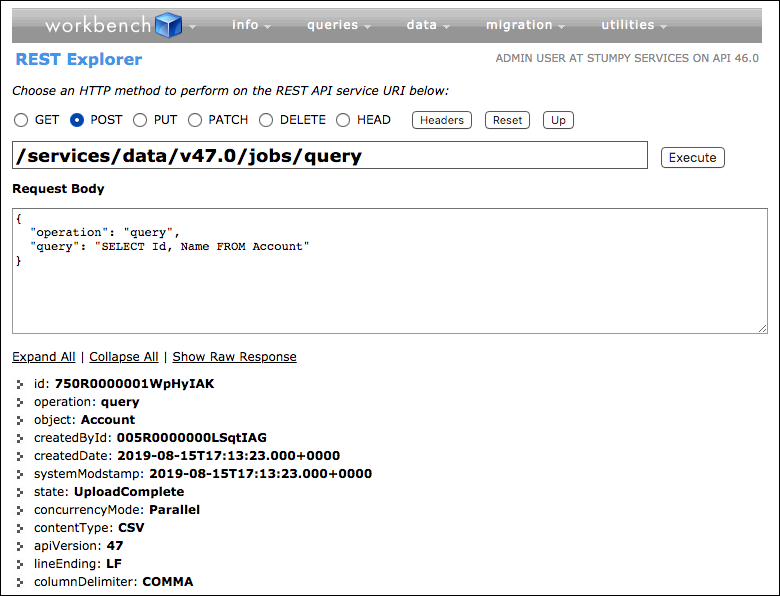
-
To monitor the state of the job, create a GET request. jobId is the job ID that was returned by the POST request that created the query job.
1/services/data/vXX.X/jobs/query/jobIdThe response shows the current state of the job.
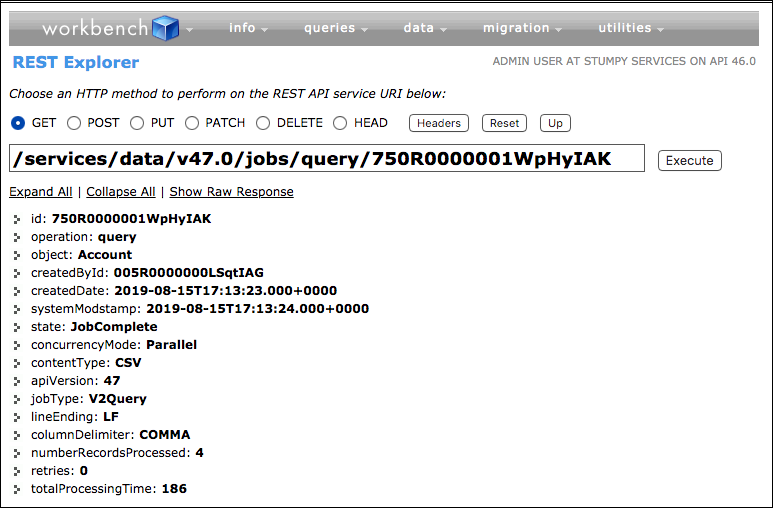
Repeat this step until the state is JobComplete.
-
To get the results of the job, create a GET request with the following details:
URI:
1/services/data/vXX.X/jobs/query/jobId/resultsThe response shows the results of the SOQL query run when you created the query job.
