


LWR Sites for Experience Cloud
 j
jNewer Version Available
Use Apex and SOQL for Search
Create a theme layout search component that sends the user to a search results
page.
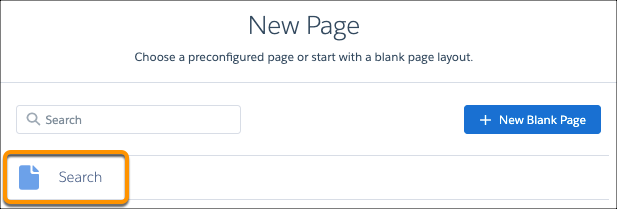
- Create a standard page for Search in the site, which functions as the search results
landing page.
- Drag the Simple Theme Header component onto the theme header
region. The Simple Theme Header component serves as the header for the page and contains
some utilities, such as the Search Bar component.
When a user types a term and clicks Enter, the Search Bar component uses the lightning-navigation API to navigate to the Search page in the site. See lightning-navigation in the Lightning Web Components Reference.
- Drag the Search Results component into the content region of the
Search page. The Search Results component grabs the search URL parameter by using the
{!term} expression language reference.
The Search Results component then sends the search term and object API name as parameters in an Apex method request for the search results data, which it uses to populate the UI.
- The GlobalSearchController.cls is the Apex controller that takes the search term and performs a SOQL search for records with a Name containing the search string.