LWR Sites for Experience Cloud
 j
jNewer Version Available
Create a Section Color Palette
On many websites, it’s common to have sections of a page, such as the header, footer,
or banners, that use different colors from the overall site. For example, perhaps you want to
create a header with a dark background and a light foreground, whereas the rest of your site
does the opposite. To achieve this, you can create separate color palettes and apply them to
your page sections. Each section on a page can have its own color palette.
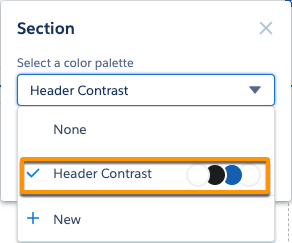
We’ve made it easy to adjust these colors on any section. Just select a section, and pick an existing or define an entirely new color palette.
- In Experience Builder, open the Colors tab of the Theme panel.
- Click
 | Manage Color Palettes.
 - Click New Palette and give the palette a name.
The new palette is created and selected in the Colors tab.

- Update the palette’s color properties in the Colors tab as needed.
- To use the palette, select a section on the page and then choose the palette from the
section’s properties.